Thinkspaces
Thinkspaces are collaborative spaces where you can share ideas, code snippets, Thinkflows, and polls. Use categories and tags to explore and organize content quickly.
Access Thinkspaces
- In the top menu, click Thinkspaces.

- Switch views:
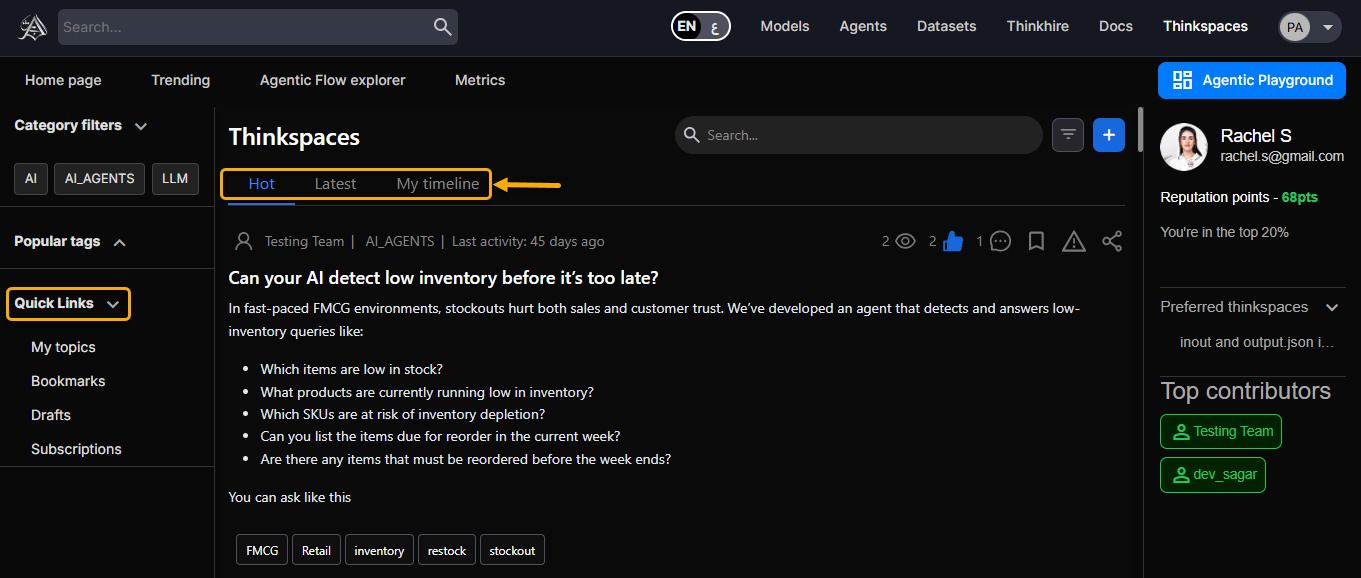
- Hot – Popular posts.
- Latest – Recent posts.
- My Timeline – Content from your posts.
- Use quick links for: My topics, Bookmarks, Drafts, and Subscriptions.
- Click Like, views count, Comment, or Report to engage with posts.
Create a Post
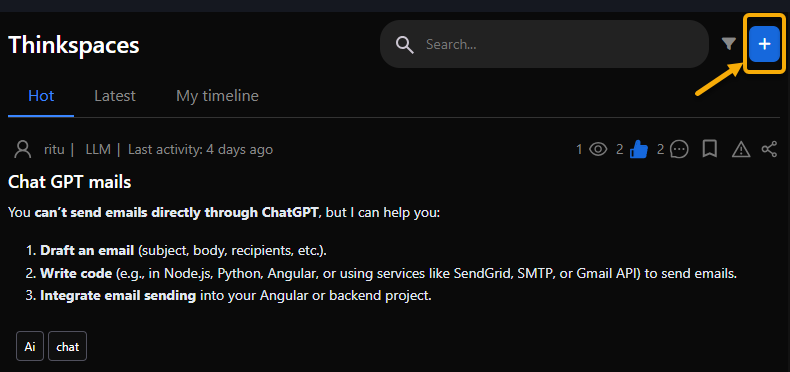
- Click the + icon in the top-right corner.
- Enter the post details:
- Title (up to 150 characters).
- Category (for example: AI Agents, Robotics, Machine Learning, LLM, AI).
- Tags (up to 5).
- Content (text, links, or formatted content).
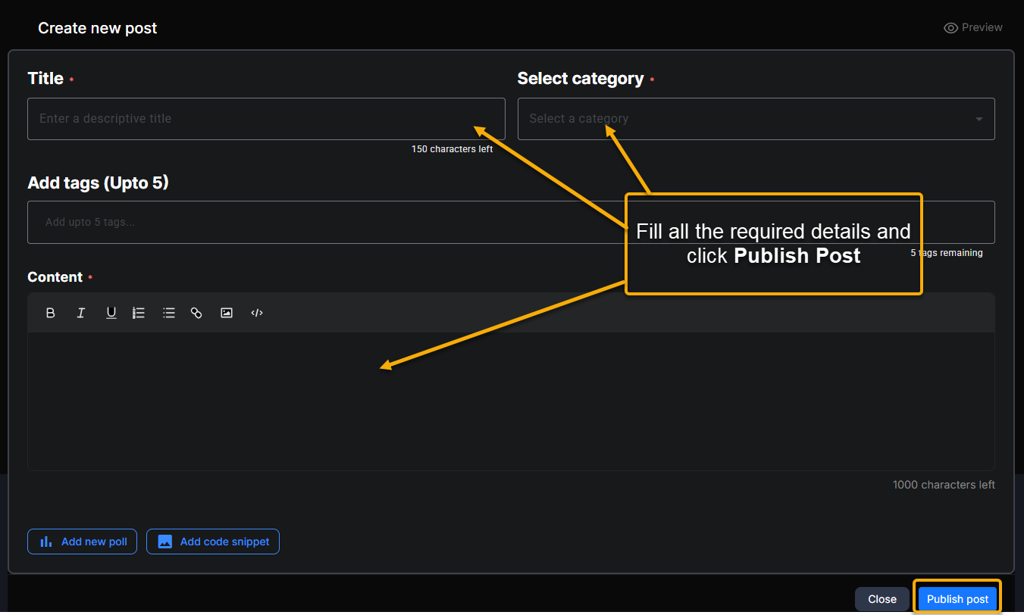
- Optional:
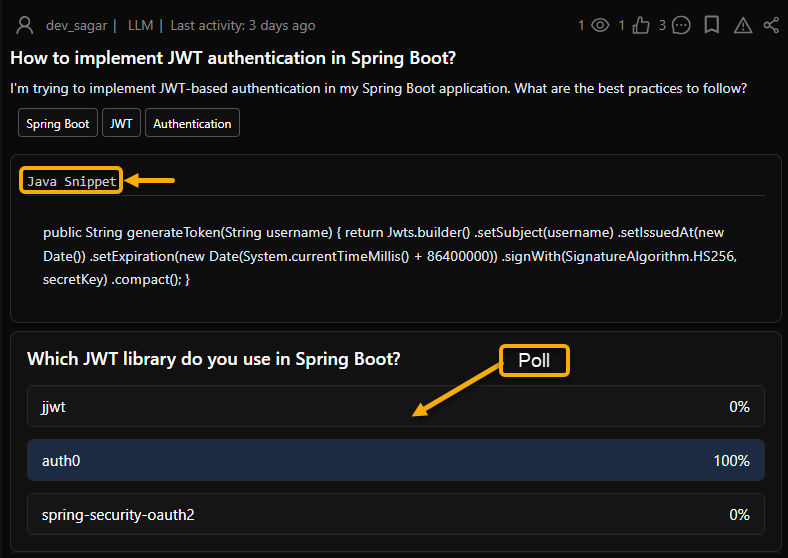
- Add a poll (see Add a Poll).
- Add a code snippet (see Add a Code Snippet).
- Click Preview to review your post.
- Click Publish post to make it live.
Add a Poll to a Post
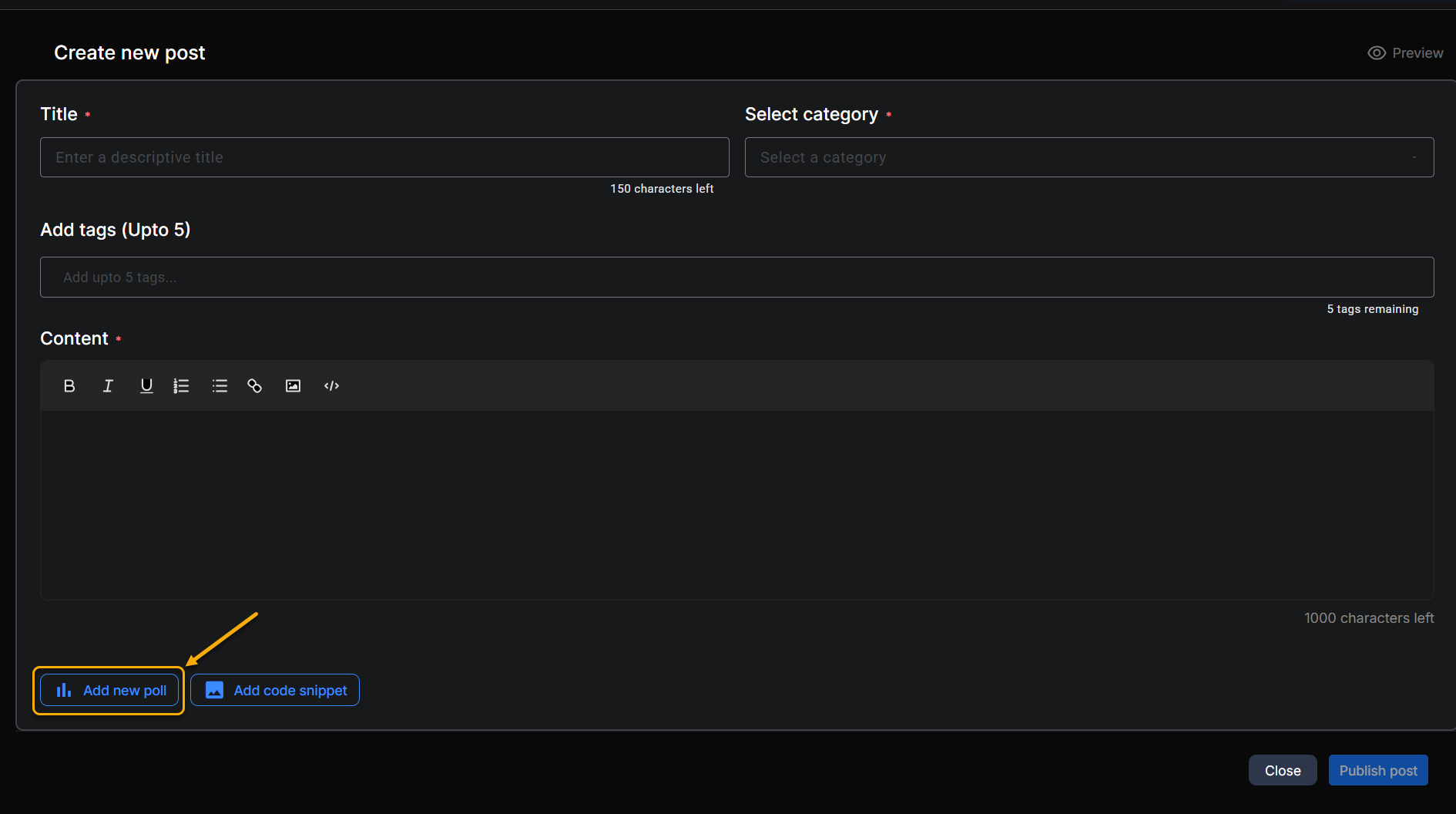
- In the Create new Post window, click Add new poll.
- Enter the poll details:
- Poll question
- Options (add as many as you need).
- Duration (poll visibility period).
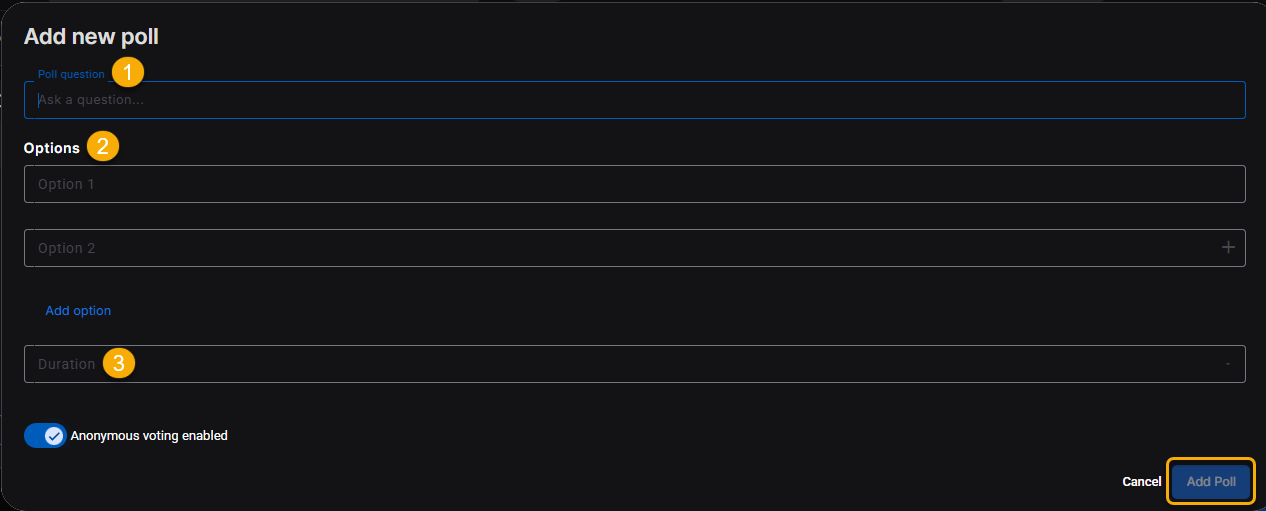
- Click Add Poll.
Info
Note: Keep poll options short and clear for better engagement.
Add a Code Snippet to a Post
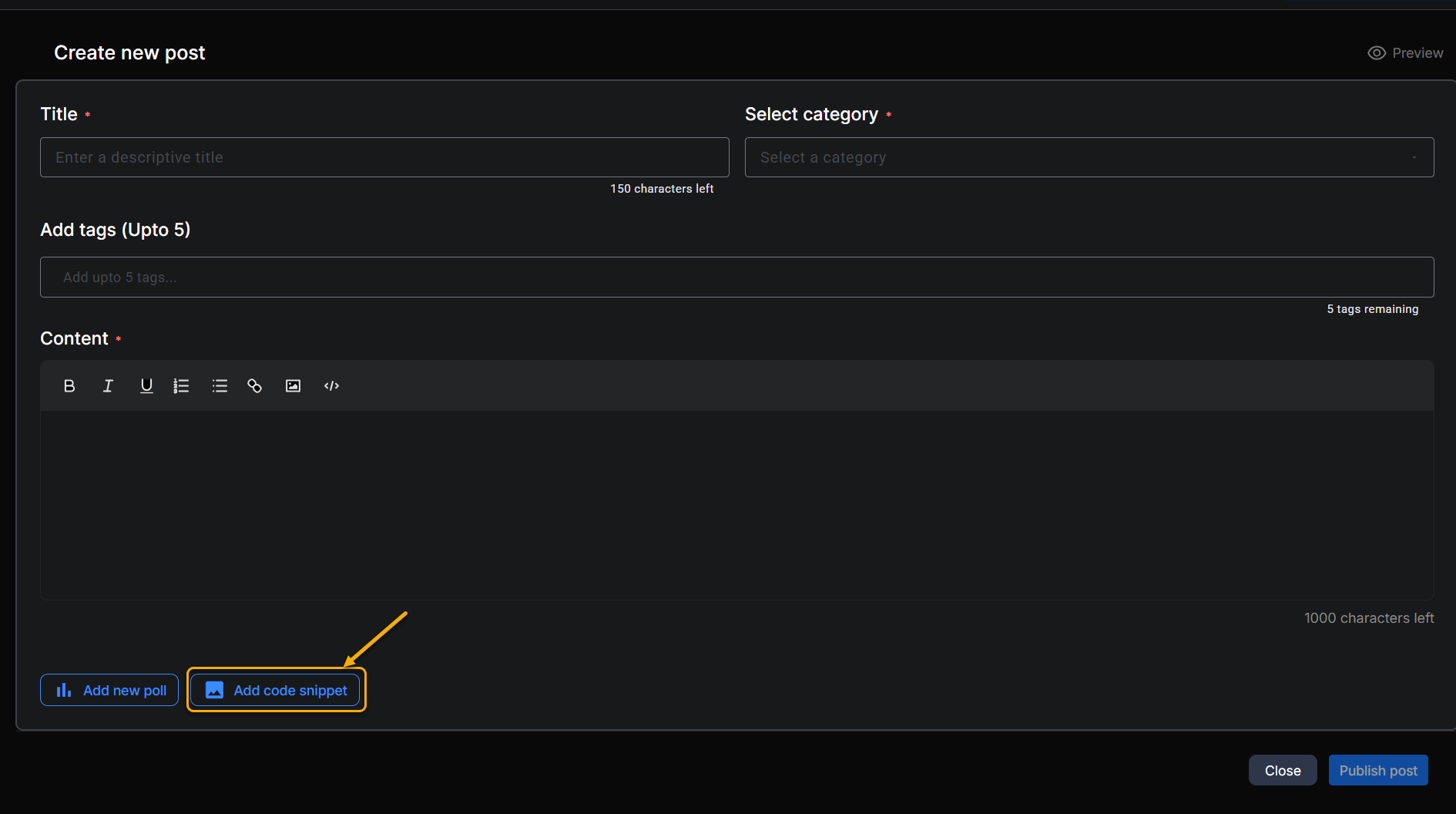
- In the Create new Post window, click Add code snippet.
- Select a language from the list (for example: JavaScript, Python, HTML, SQL).
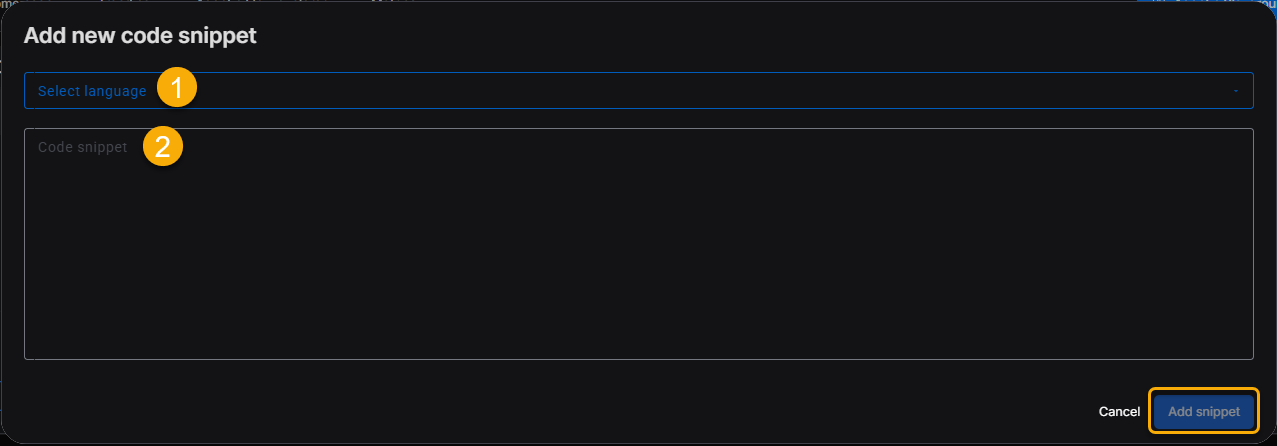
- Paste or type your code snippet.
- Click Add snippet.
Update a Post
Go to My Timeline and find the post you want to update.
Click the post title to open it.
Select the three dots menu next to the share option.
Select Edit from the menu.
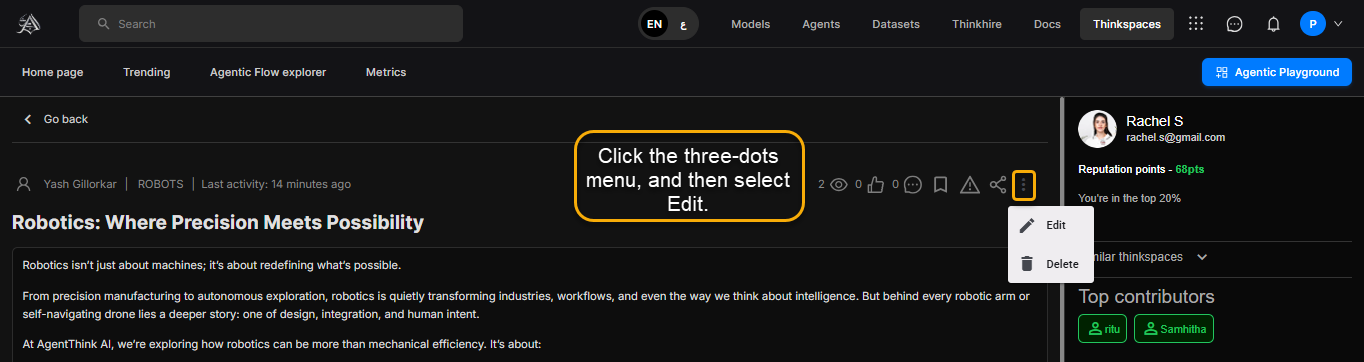
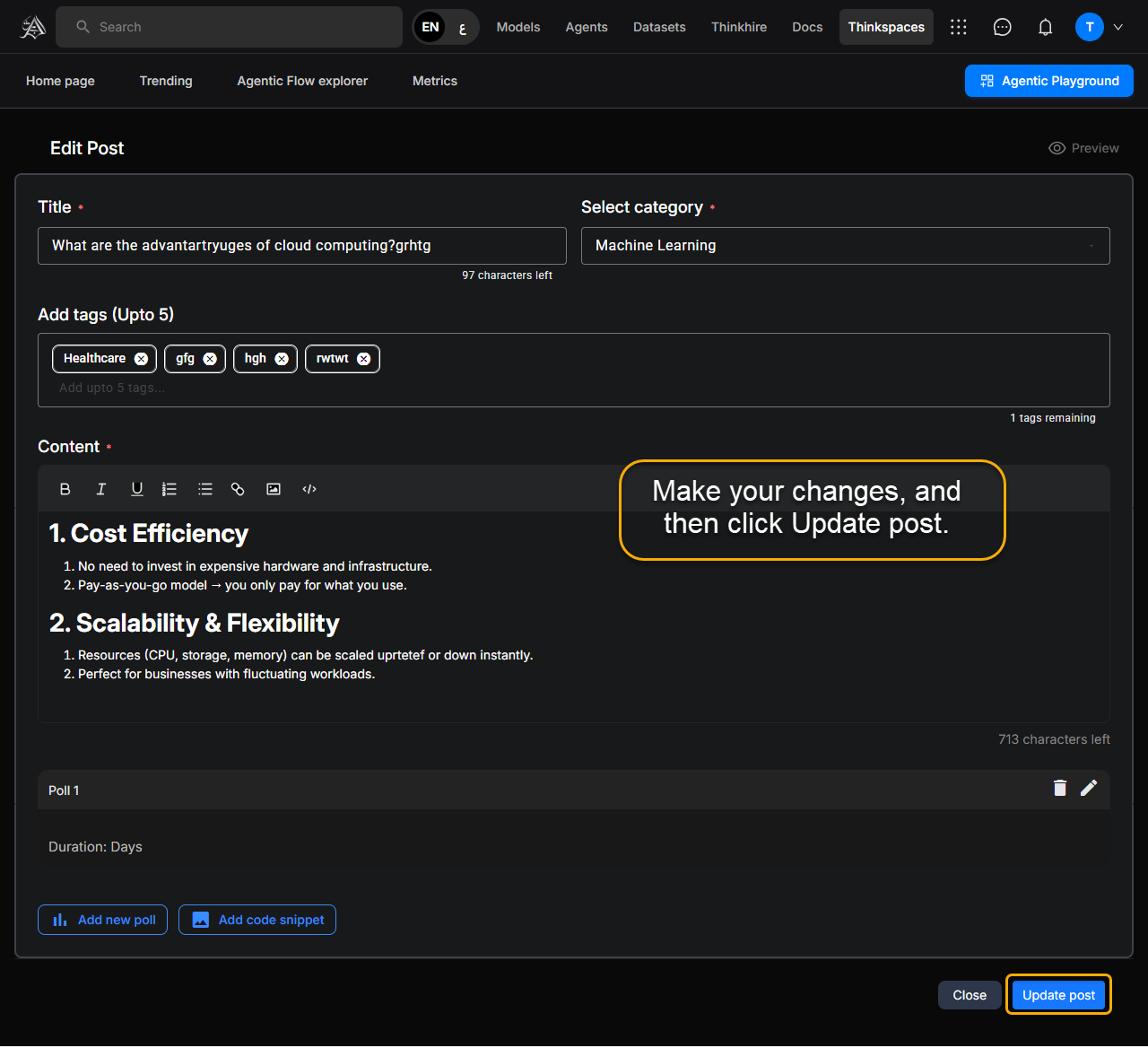
- The Edit post opens.
- Make your changes, and then click Update post.
Success
Success: Your post is now updated with the changes.