
Sign In and Sign Up
This guide explains how to sign up for a new account and sign in to the AgenThink platform.
Sign In
Use the sign-in page if you already have an account.
- Enter your Email address and Password, click Sign in.
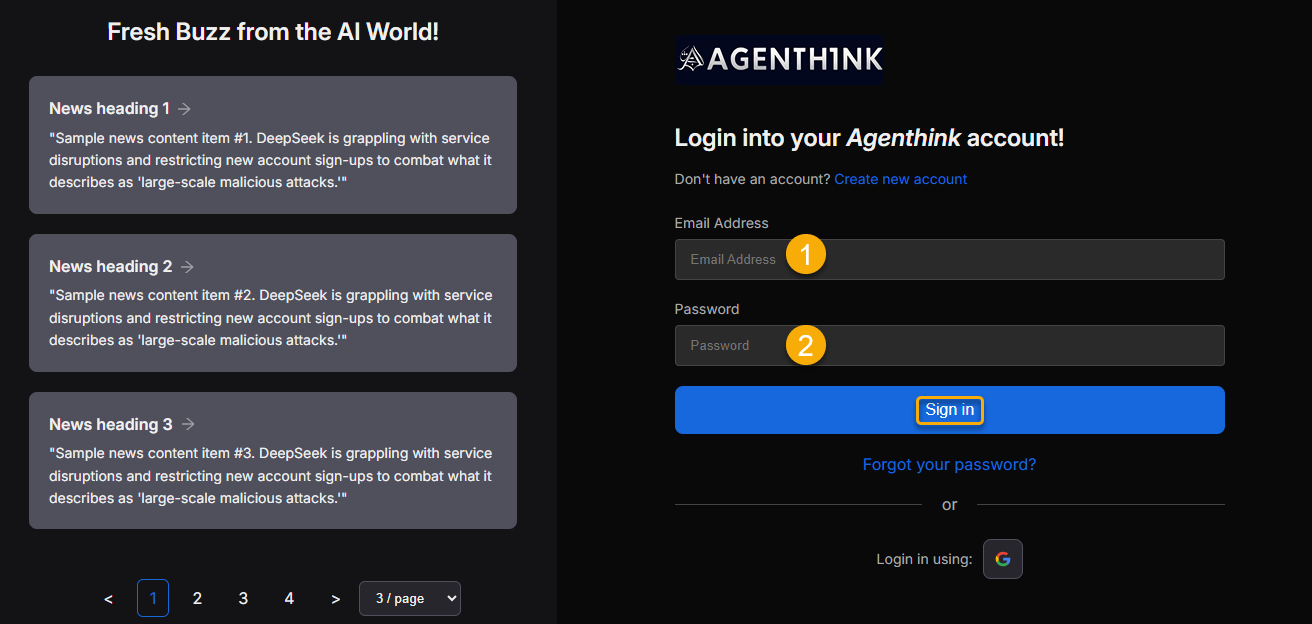
- To reset your password, select Forgot your password? and follow the email instructions.
- To log in with Google, select the Google icon.
Warning
Caution: Use the same email address you used during registration.
Sign Up
Follow these steps if you are a new user.
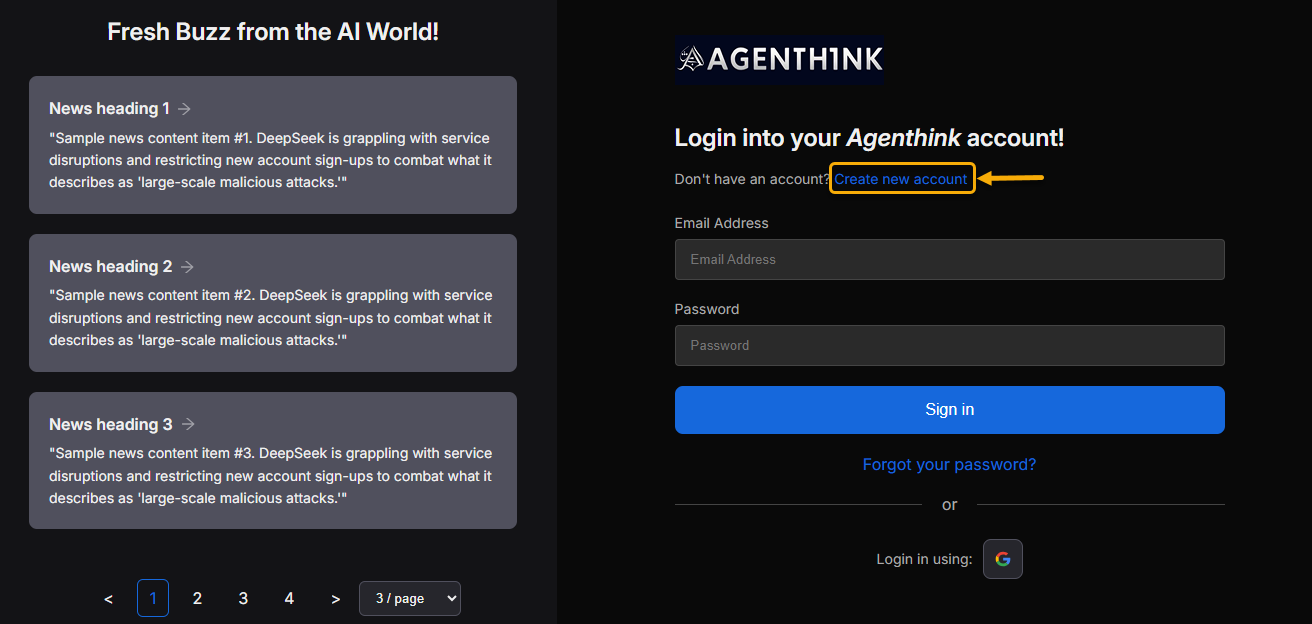
- On the Log in Page, click Create new account.
- On the Create your AgenThink account page, enter the following details:
- Password
- Confirm password
- Display name
- Given name
- Surname
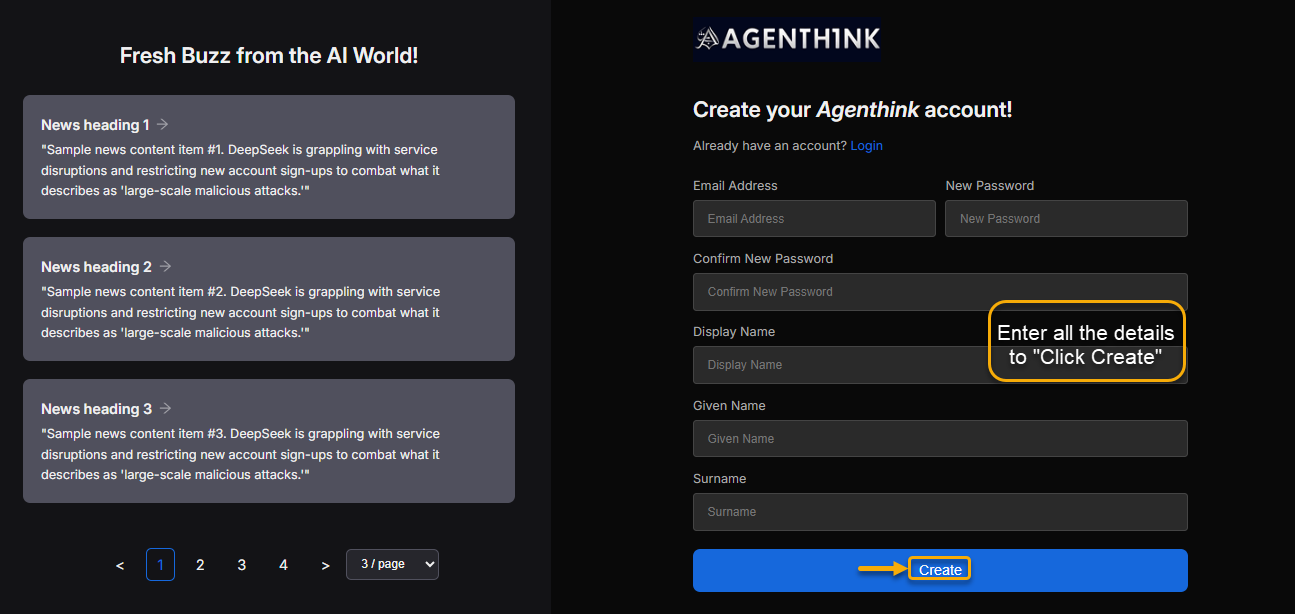
- Click Create.
Complete Account Setup
After account creation, you are redirected to the AgenThink dashboard.
- You will be asked to fill out the sign-up form.
- Choose your account type:
- Individual
- Business
Info
Note: Select Individual for personal use. Select a Business for a team or organization.
Individual Account Setup
Follow these steps if you select Individual.
- Click Individual.
.png)
- Choose your category: Student, Professional, or Other.
- Enter your Role and Department.
- Under Your Goal – I want to select:
- Build Agent / Thinkflow (Creator), or
- Use Agent / Thinkflow (User).
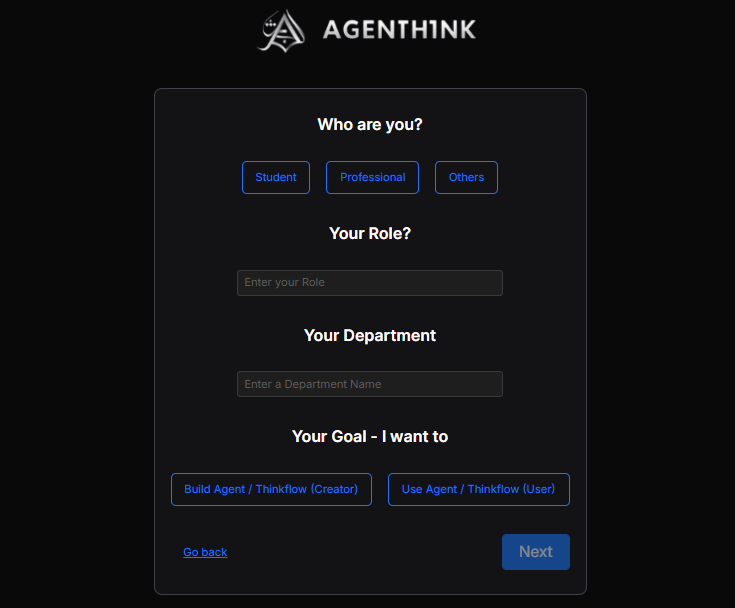
- Click Next.
Business Account Setup
Follow these steps if you select Business.
- Click Business.
.png)
- Enter your Company or Business Name.
- Choose your Role, Industry, and Company size.
- Under Your Goal – I want to select:
- Build Agent / Thinkflow (Creator), or
- Use Agent / Thinkflow (User).
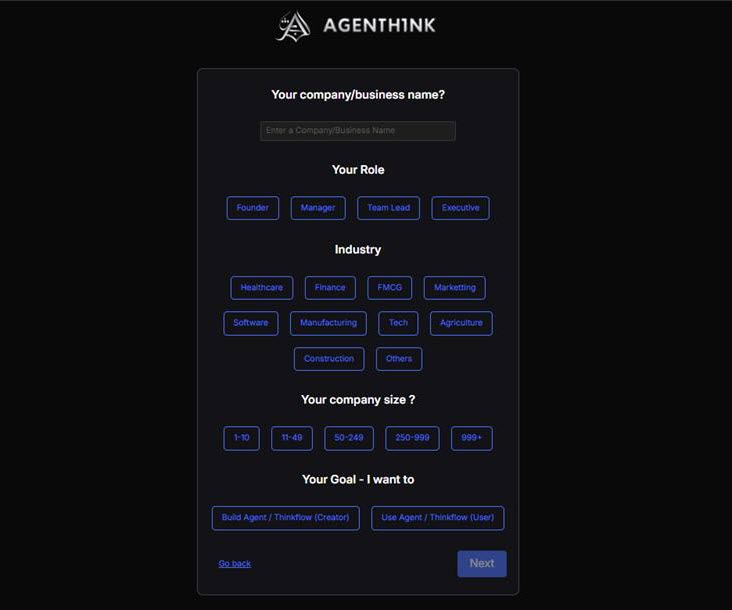
- Click Next.
Final Steps (Both Account Types)
- How did you hear about us? Page, choose an option.
- Enter your LinkedIn profile URL.
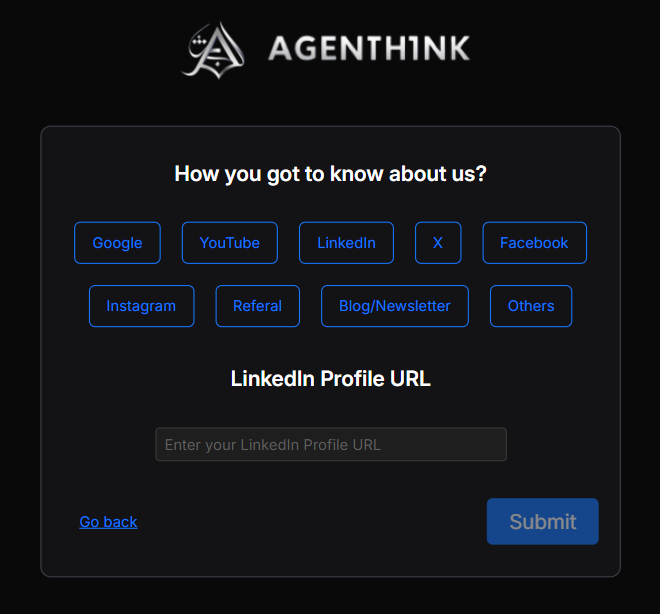
- Click Submit.
Success
Success: A confirmation message appears: Thanks for signing up!
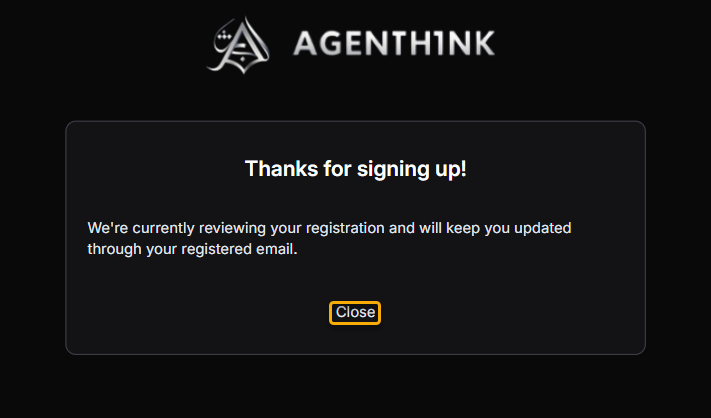
- Close the message. You’ll receive an email when an Admin approves your account. Then you can start using AgenThink.