
Gmail Tool – Operations and Scopes
Introduction
This guide explains all Gmail Tool operations available in AgenThink. It includes the required scopes, use cases, and step-by-step instructions. Scopes define the level of access the Gmail Tool has to your Gmail account. Each operation requires specific scopes to run.
Best practice: Re-authenticate after you change a scope to make sure the Thinkflow runs correctly.
Operations
1. Get Profile
Required Scope: Read-only Access
Description: Retrieves your Gmail account profile information, such as email address, total messages, total threads, and history ID.
Use case: Confirm that your Gmail account is connected and accessible within Thinkflow.
Steps:
- From the Scopes dropdown, select Read-only access.
- From the Operation dropdown, select Get Profile.
- If you changed the scope, click Re-authenticate with Google.
- Click Save → Auto Save → Deploy.
- After deployment, click Run to execute the flow.
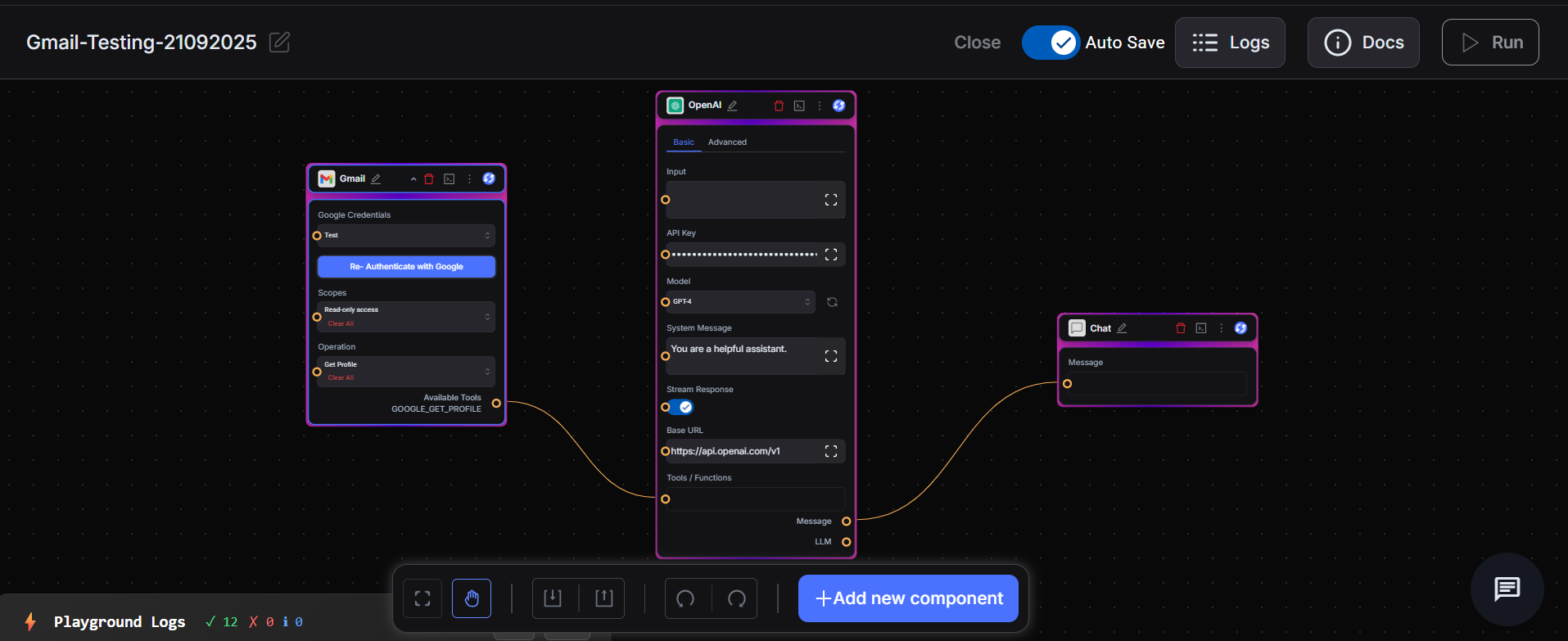
- In the My Chats window, type:
- “Get my profile”.
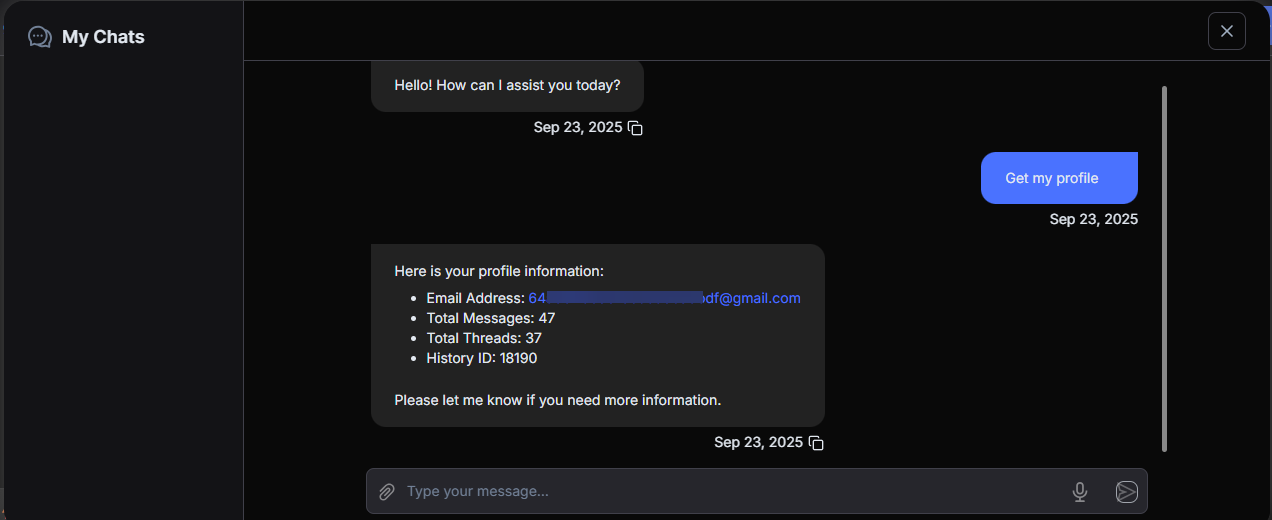
- The system displays your Gmail profile information.
2. Get Labels
Required Scope: Manage labels
Description: Fetches all existing labels from your Gmail account.
Use case: View available labels before applying them to messages or threads.
Steps:
- From the Scopes dropdown, select Manage labels.
- From the Operation dropdown, select Get Labels.
- If you changed the scope, click Re-authenticate with Google.
- Click Save → Auto Save → Deploy.
- After deployment, click Run to execute the flow.
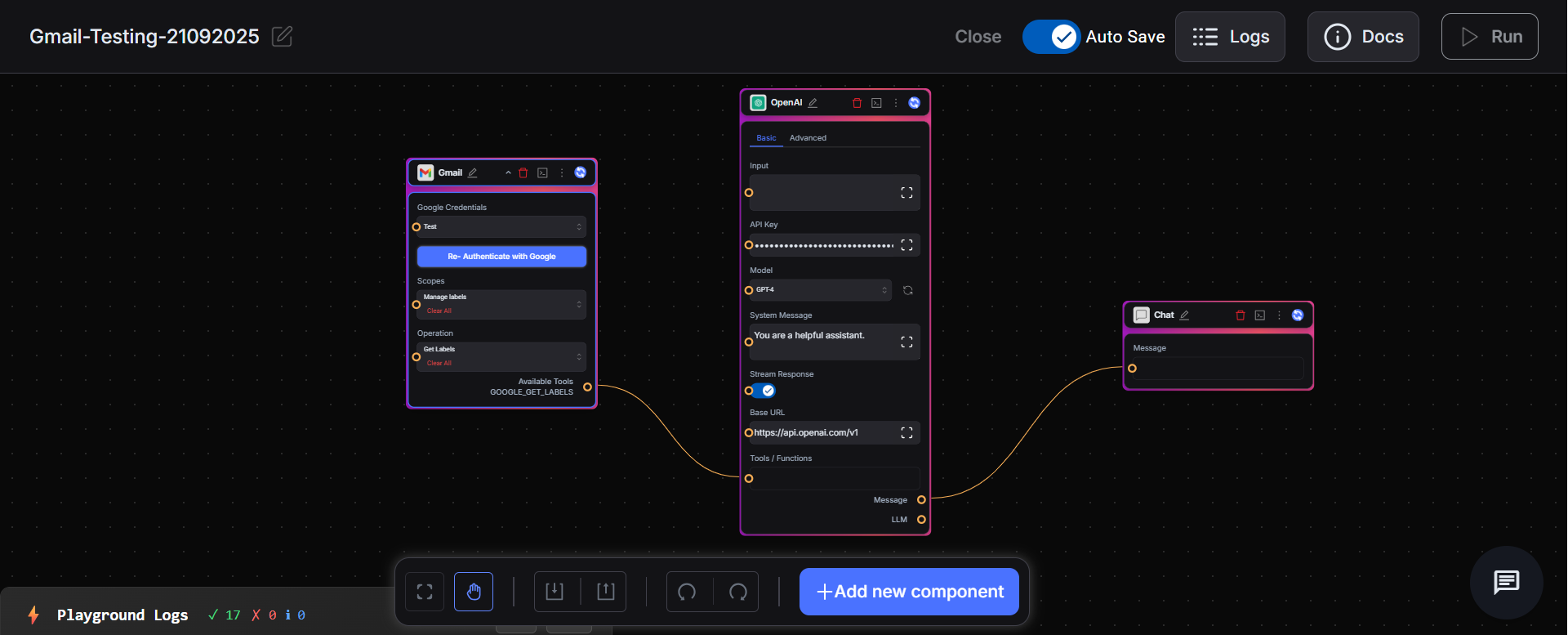
In the My Chats window, type:
- “Give me all the labels in my account.”
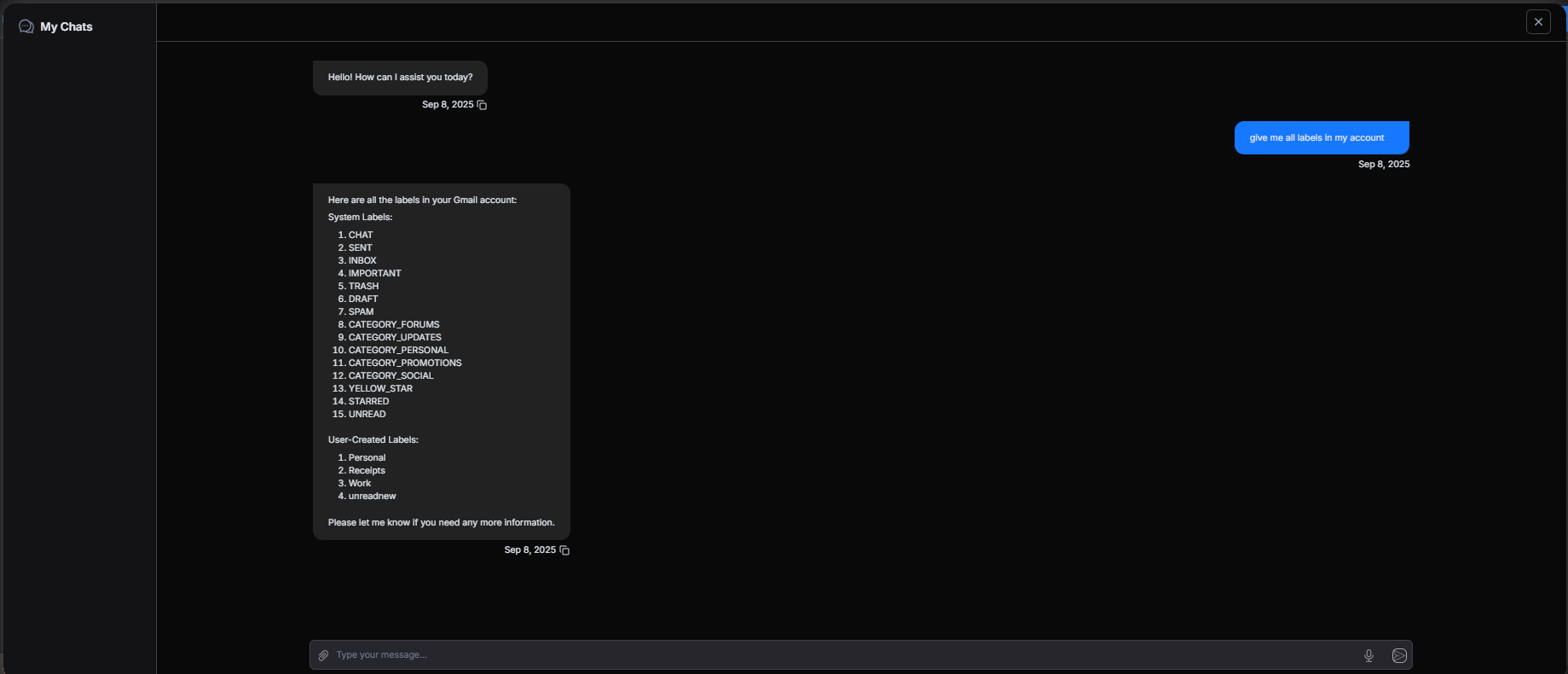
- The system displays a list of all labels present in your Gmail account.
3. Create Label
Required Scope: Manage labels
Description: Creates a new label in your Gmail account.
Use case: Organize emails with custom labels such as Invoices or High Priority.
Steps:
- From the Scopes dropdown, select Manage labels.
- From the Operation dropdown, select Create Label.
- If you changed the scope, click Re-authenticate with Google.
- Click Save → Auto Save → Deploy.
- After deployment, click Run to execute the flow.
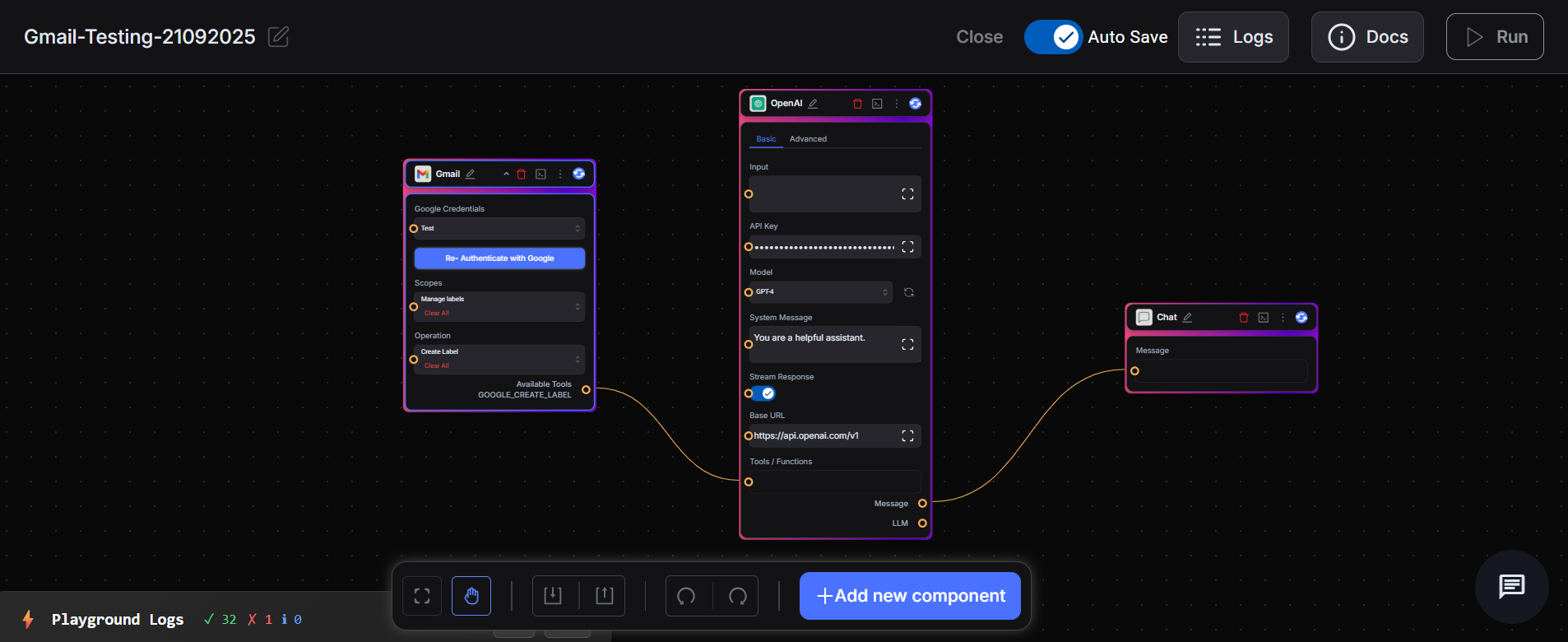
In the My Chats window, type:
- Create a label named 'Agents'.
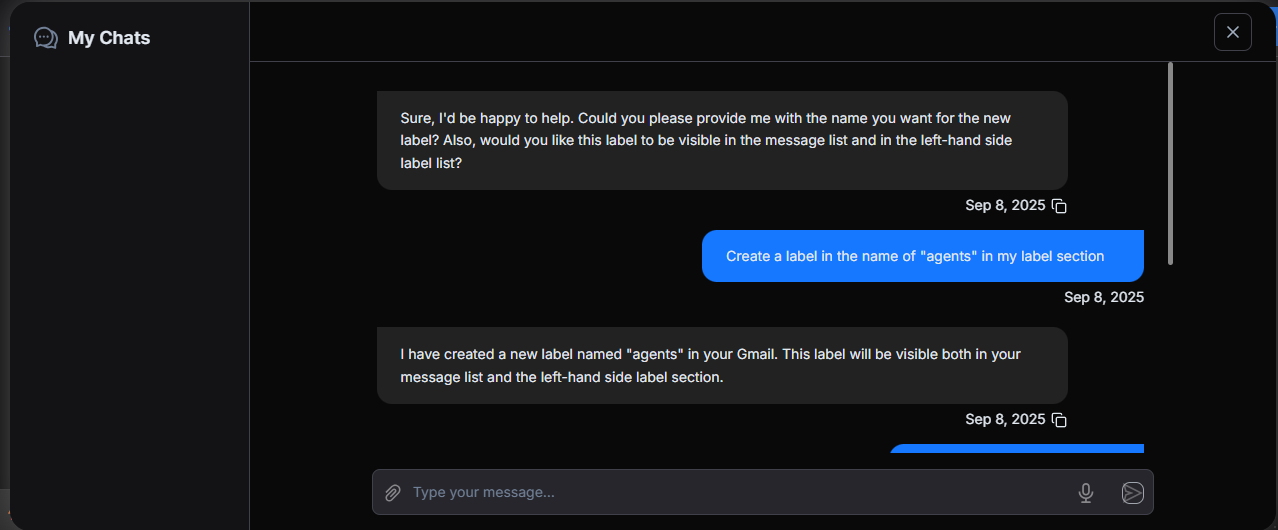
- The system confirms label creation.
4. Get Messages
Required Scope: Read-only or Read-write access.
Description: Retrieves a list of messages from your Gmail inbox.
Use case: Fetch multiple messages that match conditions such as unread, from a specific sender, or the most recent.
Steps:
- From the Scopes dropdown, select Read-only or Read-write.
- From the Operation dropdown, select Get Messages.
- If you changed the scope, click Re-authenticate with Google.
- Click Save → Auto Save → Deploy.
- After deployment, click Run to execute the flow.
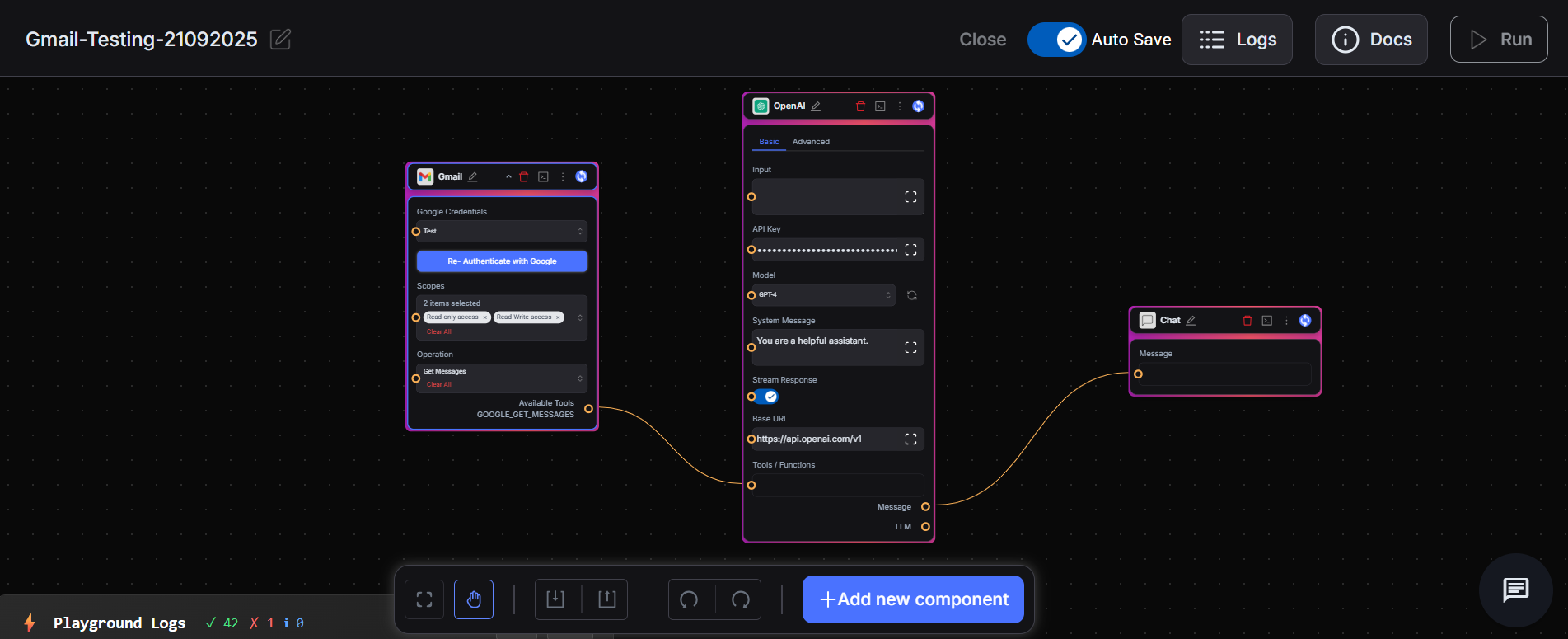
In the My Chats window, type:
“Get my unread messages”
“Fetch the last 5 messages from example123@gmail.com”
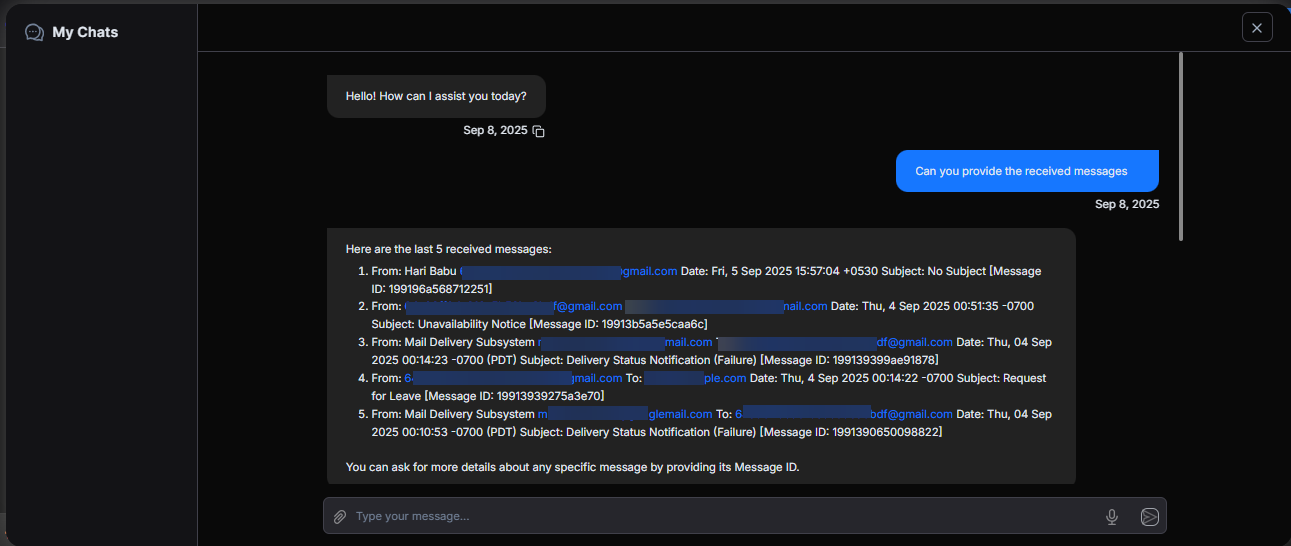
- The system returns a list of messages with details such as message IDs, subjects, senders, and timestamps.
5. Send Email
Required Scope: Compose and send an email.
Description: Sends a new email from your Gmail account.
Use case: Send notifications, alerts, or customer communication by providing the required details in the My chat window.
Steps:
- From the Scopes dropdown, select Compose and send emails.
- From the Operation dropdown, select Send Email.
- If you changed the scope, click Re-authenticate with Google.
- Click Save → Auto Save → Deploy.
- After deployment, click Run to execute the flow.
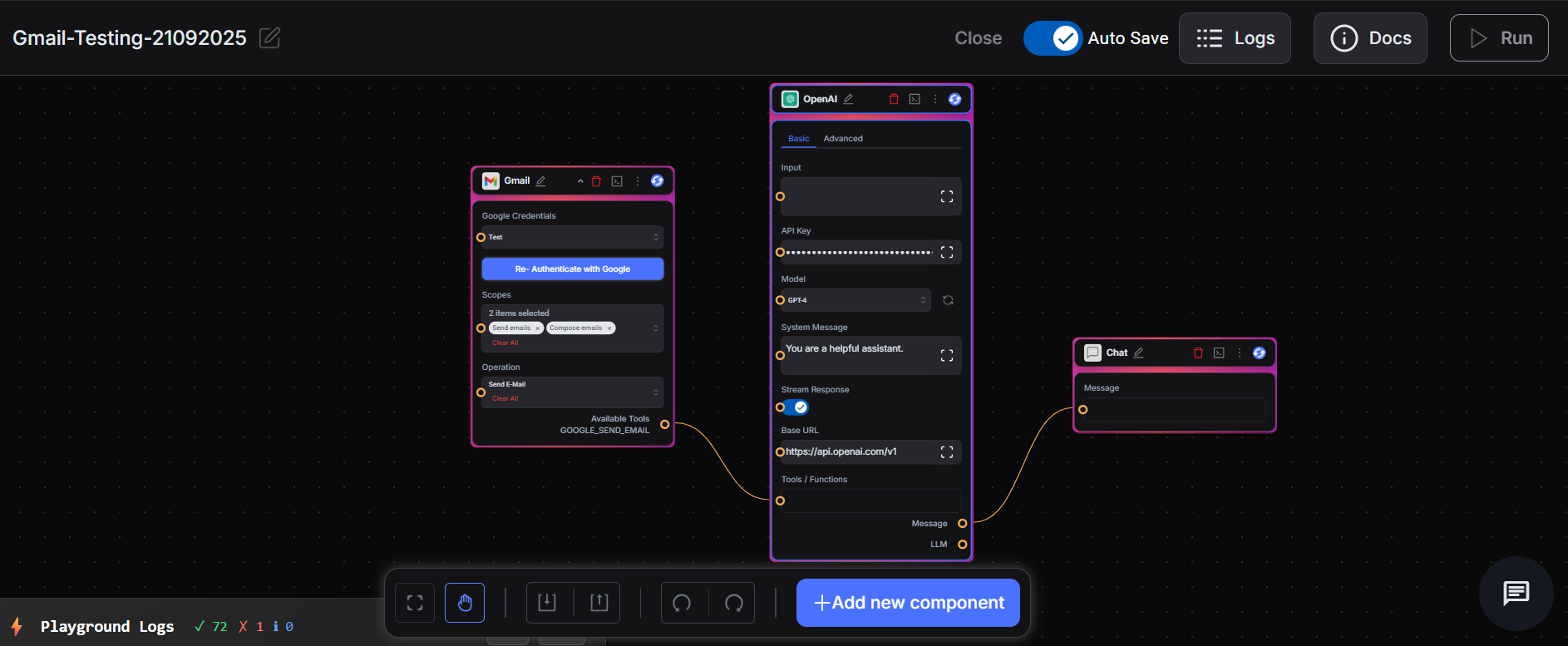
- In the My Chats window, type:
To (recipient address)
CC (optional)
Subject
Email Body
Example: “Write an email to [email address], Subject: [subject text], email Body: [message content].”
Note: All required fields (To, Subject, and email Body) must be entered manually in the My Chats window for the email to send successfully.
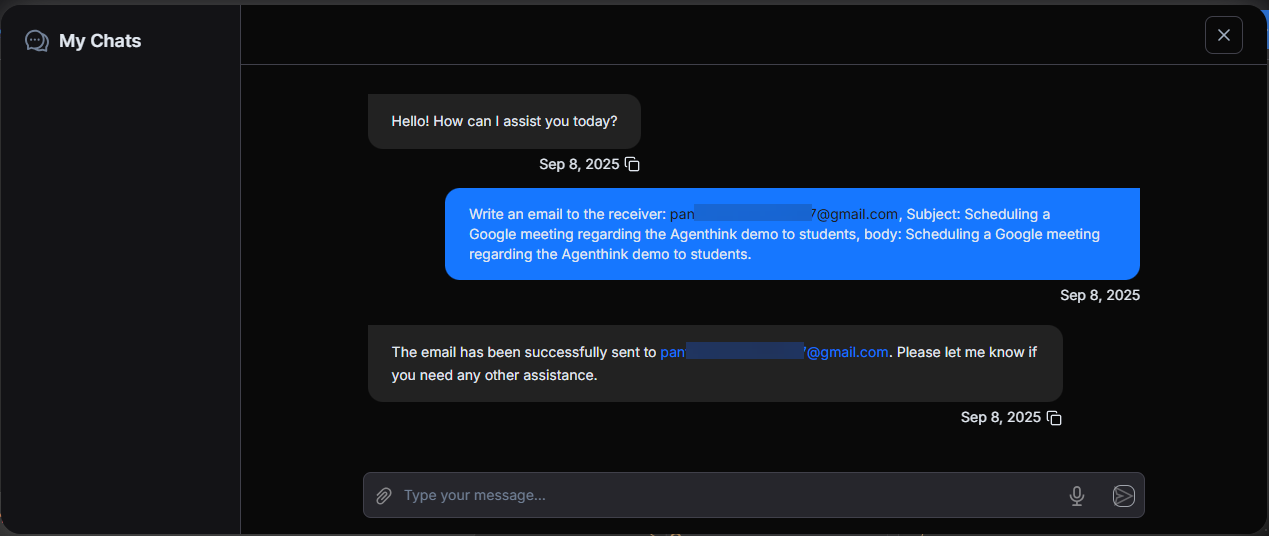
- The system confirms the email has been sent.
6. Reply to Mail
Required Scope: Send emails, Read-write access, Compose and send emails, Read-only access.
Description: Replies to an existing Gmail message by referencing its message ID.
Use case: Replies such as acknowledgments or thank-you responses, or confirmations.
Steps:
- From the Scopes dropdown, select Read-only access, Read-write access, Send emails, and Compose and send emails.
- From the Operation dropdown, select Reply to Mail, Send E-mail, and Get messages.
- If you changed the scope, click Re-authenticate with Google.
- Click Save → Auto Save → Deploy.
- After deployment, click Run to execute the flow.
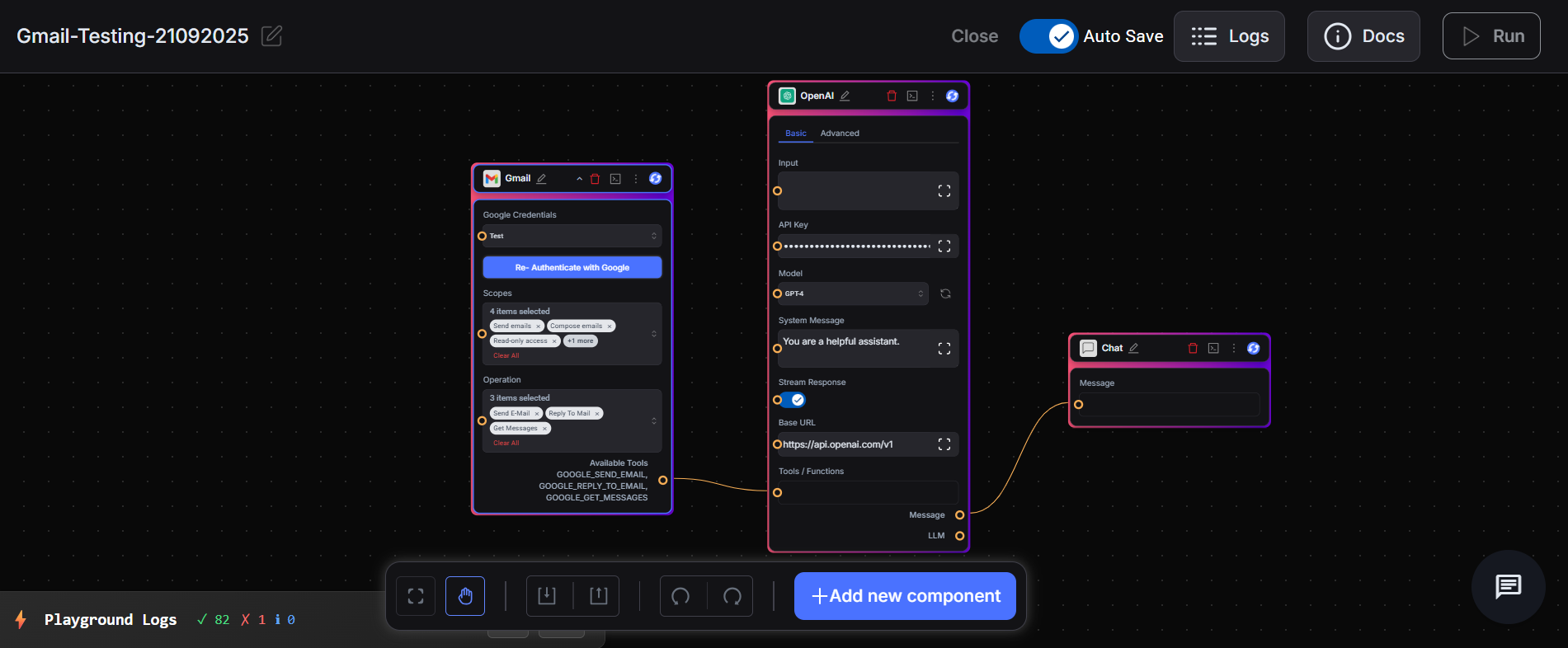
In the My Chats window, type:
“Get the last sent messages in my send box”.
“I want to send a reply email to option 2 from the above email list, email Body: [message content].”
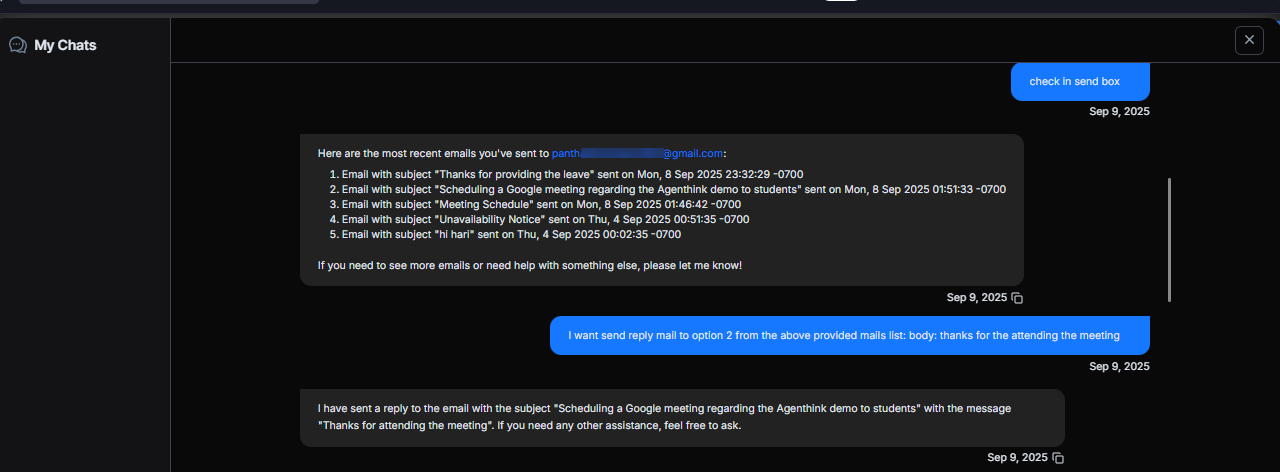
- The system confirms that the reply has been sent.
7. Modify Message Label
Required Scope: Manage labels, read-write access, read-only access, and full access.
Description: Updates labels on an existing Gmail message by adding or removing them.
Use case: Change how emails are categorized. For example, move a message from Travel to Personal or add a label such as To Review.
Steps:
- From the Scopes dropdown, select Manage labels, Read-write access, Read-only access, and Full access.
- From the Operation dropdown, select Modify Message Label, Get labels, and Get messages.
- If you changed the scope, click Re-authenticate with Google.
- Click Save → Auto Save → Deploy.
- After deployment, click Run to execute the flow.
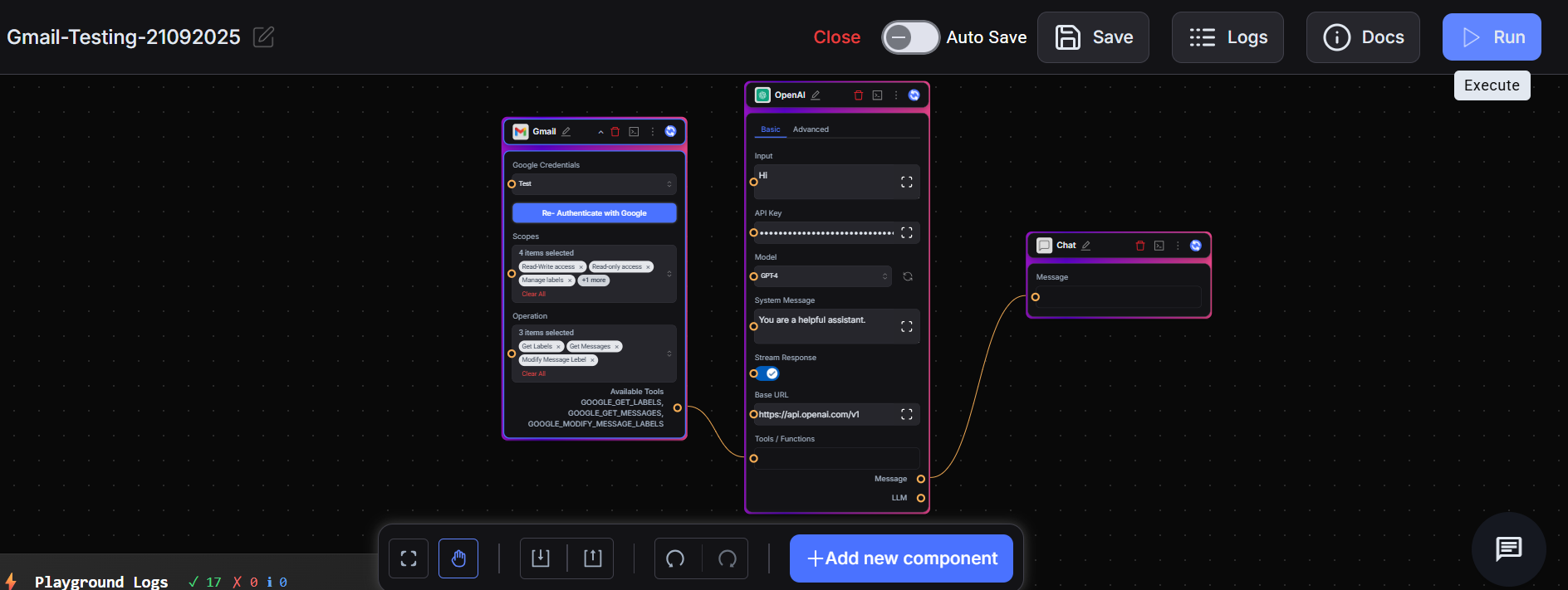
In the My Chats window, type:
“Give me the top 5 messages that I received from example123@gmail.com.”
“I want to change the label Travel to Personal for the messages I received from example123@gmail.com.”The chat output confirms the update.
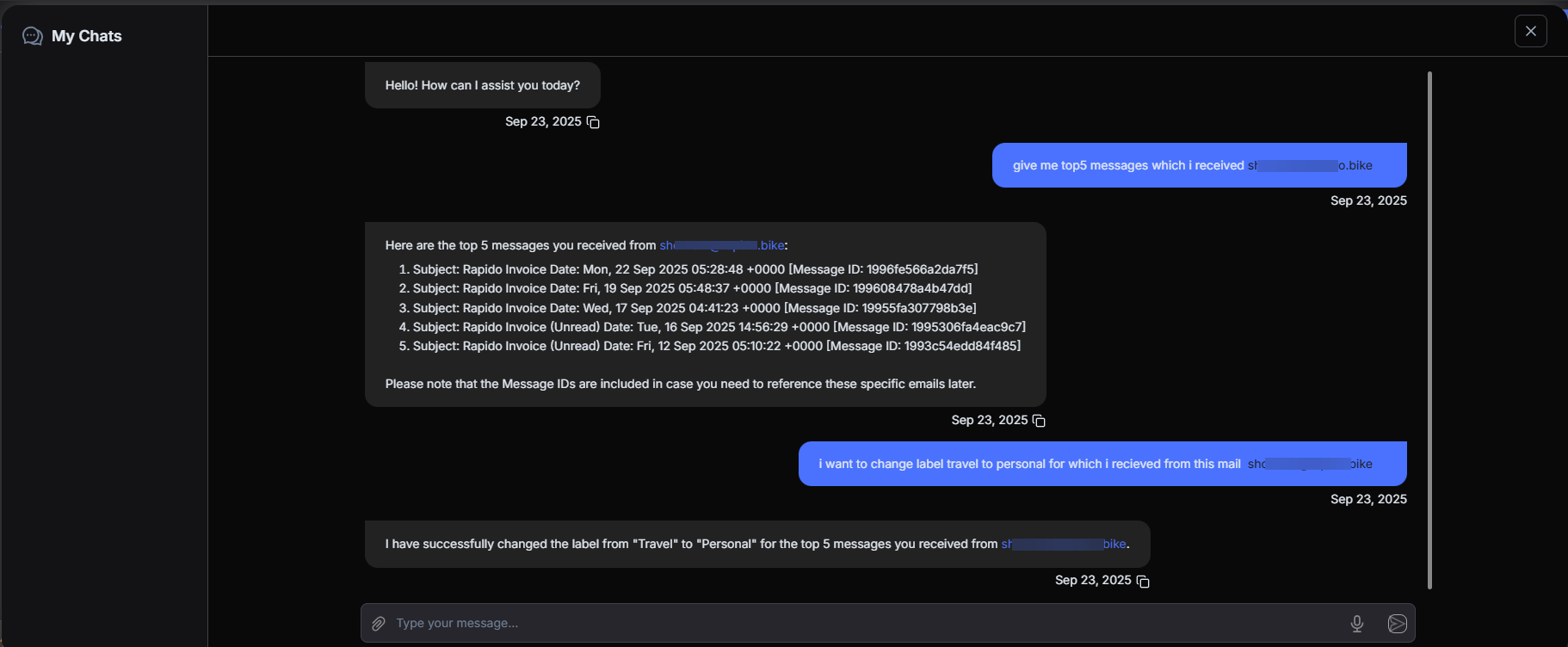
- The system confirms that the label has been updated.
8. Delete Message
Required Scope: Read-write access and read-only access.
Description: Deletes a Gmail message by ID.
Use case: Remove emails that are no longer needed.
Steps:
- From the Scopes dropdown, select Read-write access and Read-only access.
- From the Operation dropdown, select Delete Message and Get messages.
- If you changed the scope, click Re-authenticate with Google.
- Click Save → Auto Save → Deploy.
- After deployment, click Run to execute the flow.
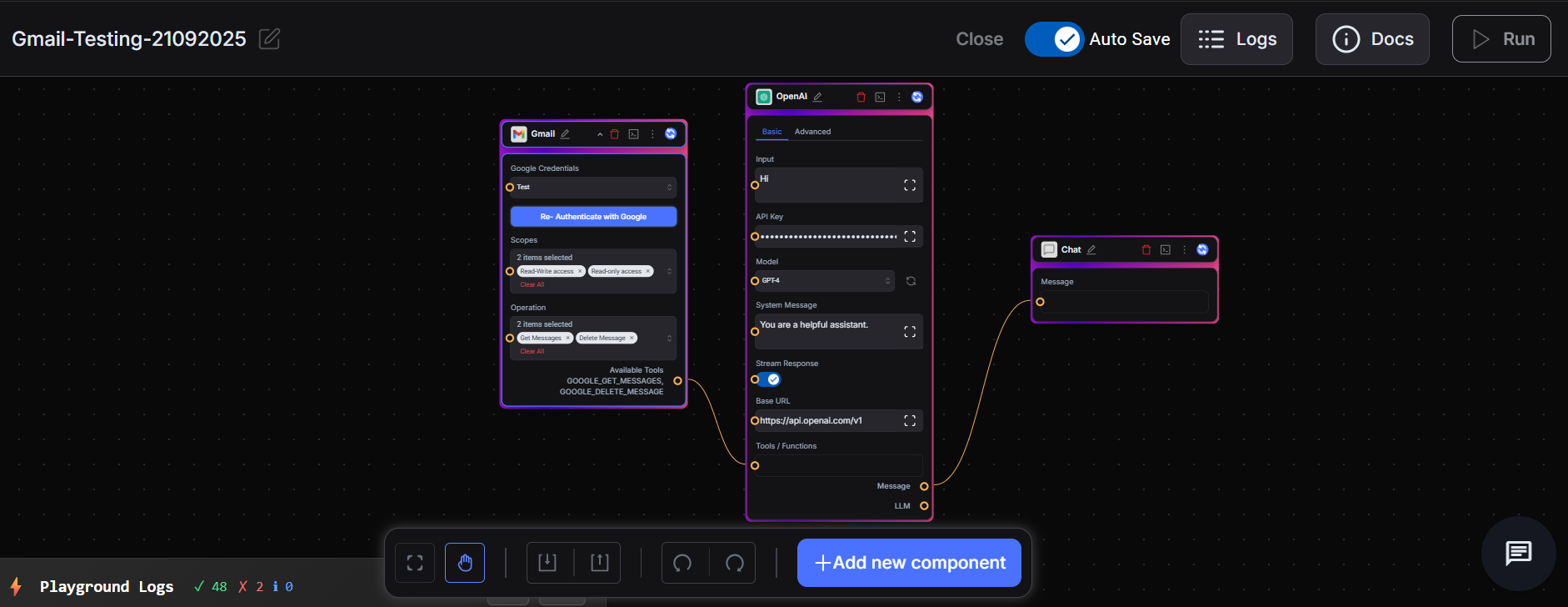
In the My Chats window, type:
“Give me my last email.”
“I want to delete this email.”
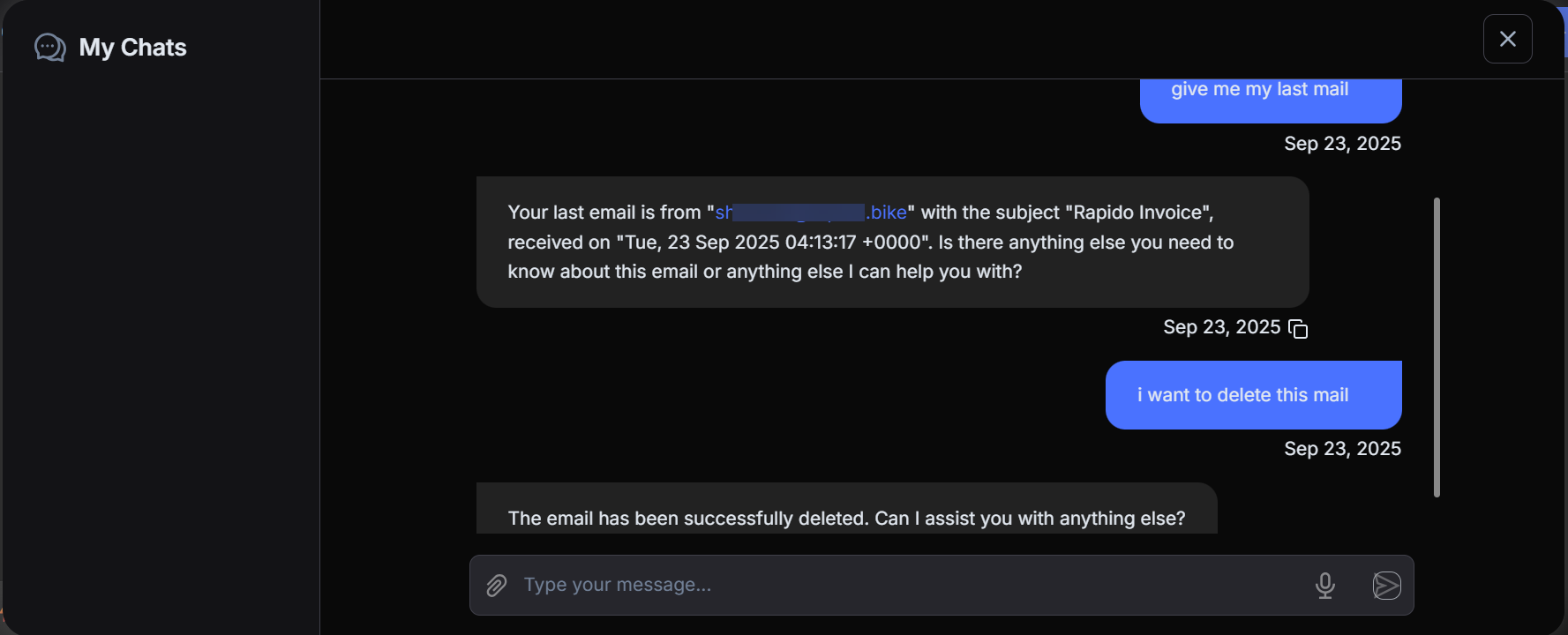
- The system confirms deletion.
9. Apply Label to Message
Required Scope: Manage labels, read-write access, read-only access, and full access.
Description: Applies a specific Gmail label to an email.
Use case: Categorize incoming messages with labels such as Work, Personal, or High Priority.
Steps:
- From the Scopes dropdown, select Manage labels, Read-write access, Read-only access, and Full access.
- From the Operation dropdown, select Apply label to messages, Get labels, Get messages, and Full access.
- If you changed the scope, click Re-authenticate with Google.
- Click Save → Auto Save → Deploy.
- After deployment, click Run to execute the flow.
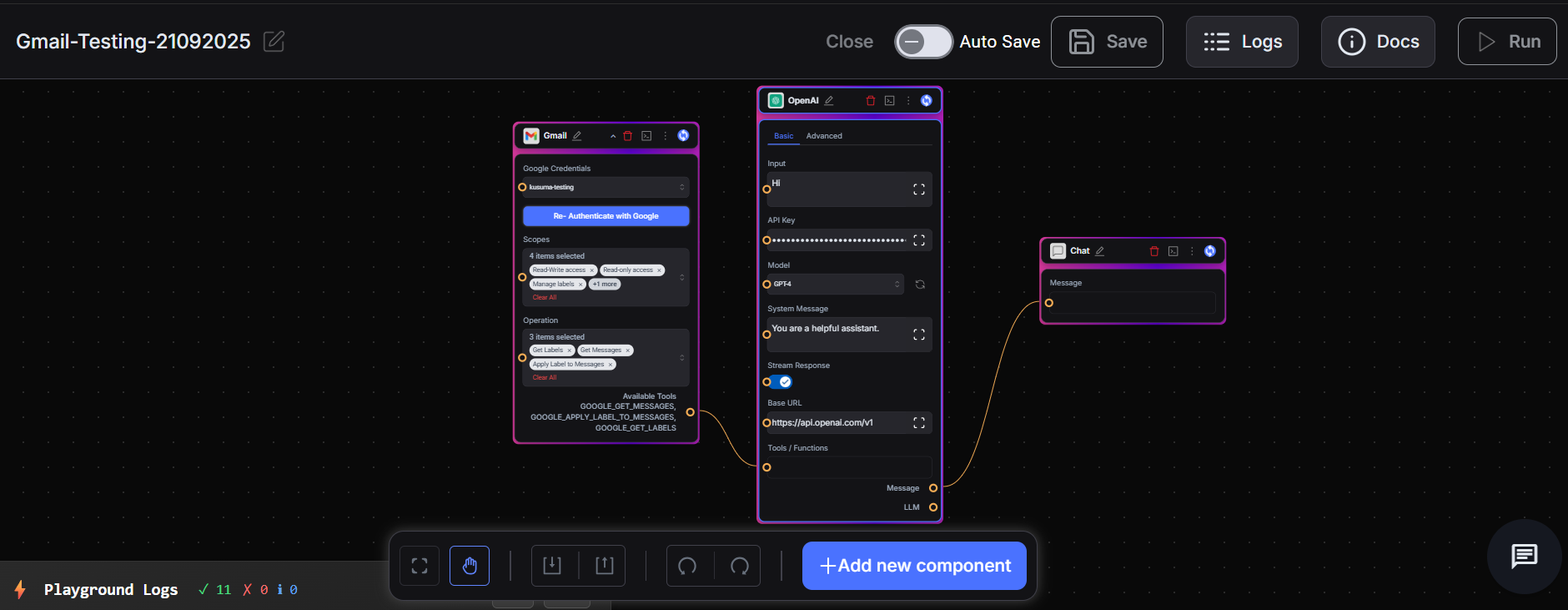
In the My Chats window, type:
“Give me the top 5 emails I received from example@123.com with message IDs.”
“Add the label ‘Personal’ to this email ID eample@123.com.”
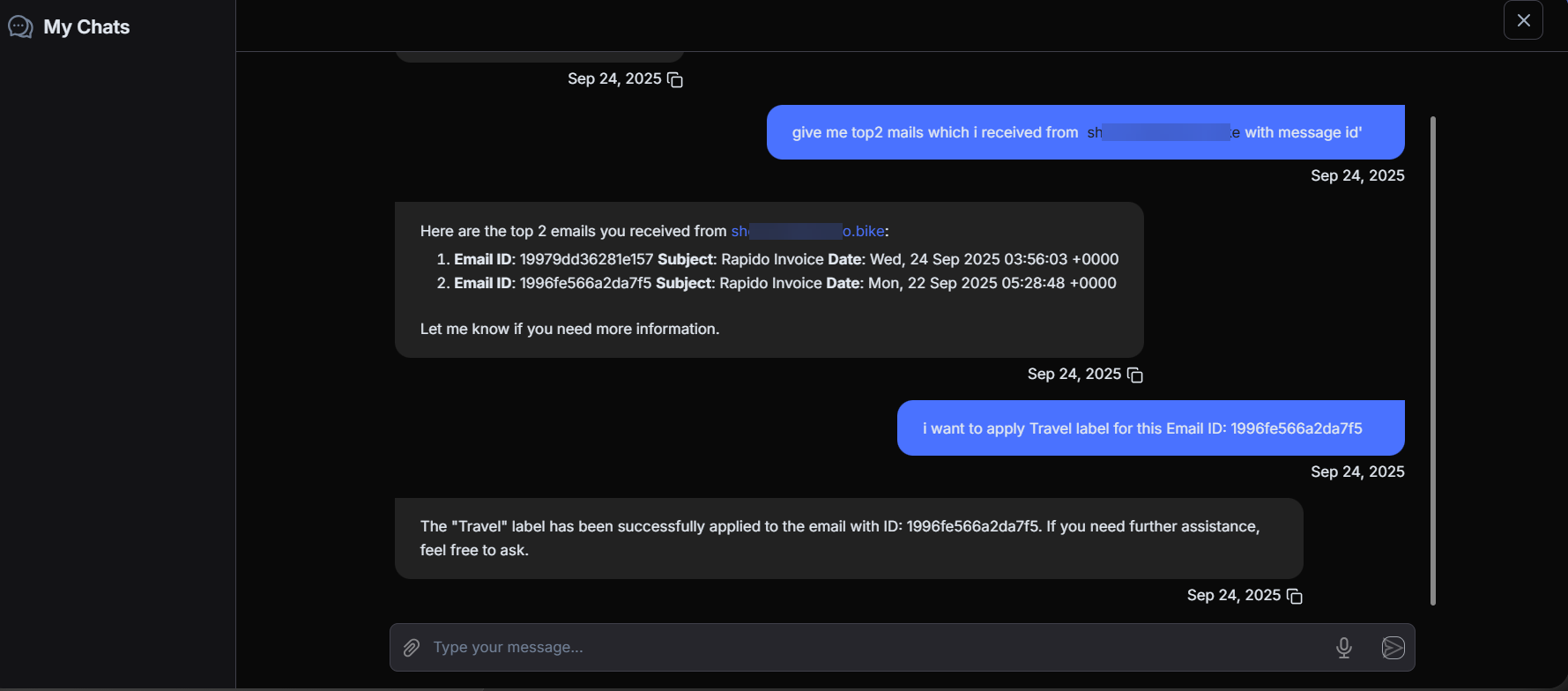
- The system confirms the label is applied.
Gmail Scopes Overview
| Scope | Description |
|---|---|
| Read-only access | View messages and labels |
| Read-write access | View and update messages |
| Send emails | Compose and send emails |
| Manage labels | Create, update, or delete labels |
| Full access to Gmail | Complete access: read, send, delete, and settings |
Best practice: Always grant only the minimum scopes required for your Thinkflow.