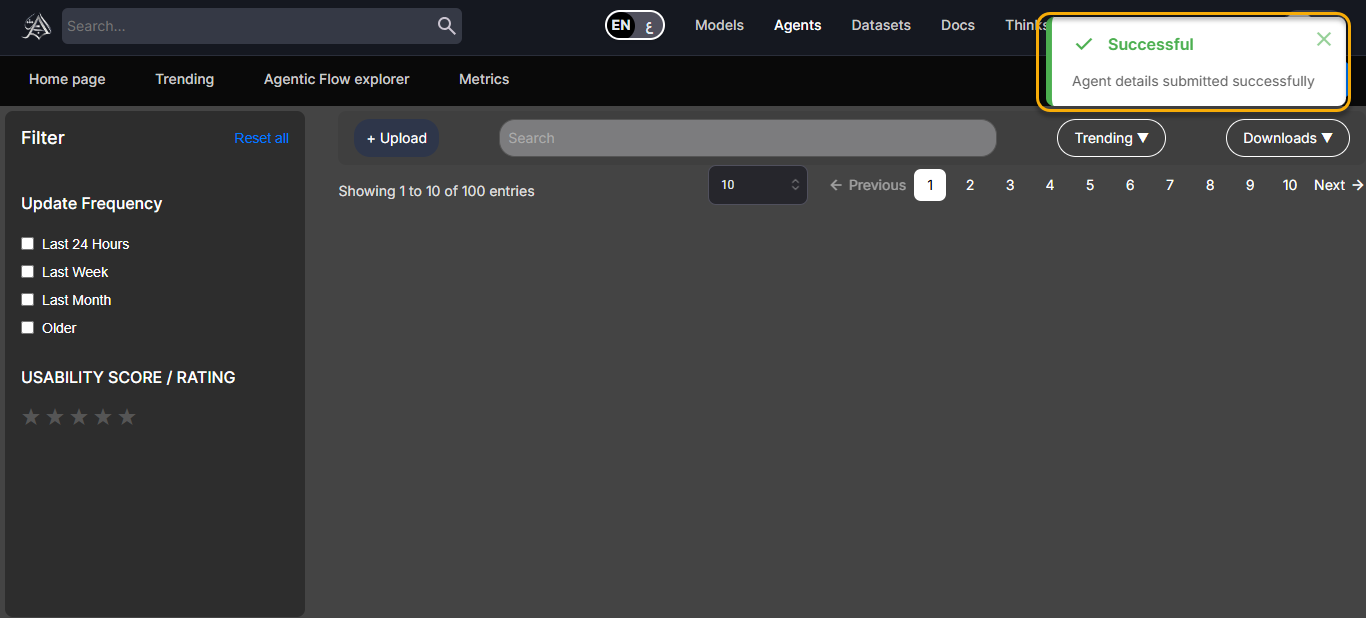
Agents
Introduction
Agents are customizable components in the AgenThink AI platform that automate tasks or Thinkflows. They process inputs, make decisions, and integrate with external models and APIs. Use agents for natural language processing, computer vision, time series analysis, and audio tasks.
To create a custom agent, upload your code, select a model provider, and configure the endpoints. After you publish the agent, it appears in the Agents Library and is available for use in Thinkflows
This guide explains how to upload an agent in three steps.
How to Upload an Agent
Prerequisites
Before uploading an agent, make sure you:
Have a Creator Role account on the platform.
Prepare the following required files:
Metadata.jsonInput.jsonOutput.json
Decide your agent’s type, programming language, model provider, and environment(Local, Cloud, or Hybrid).
Step 1: Enter Agent Details
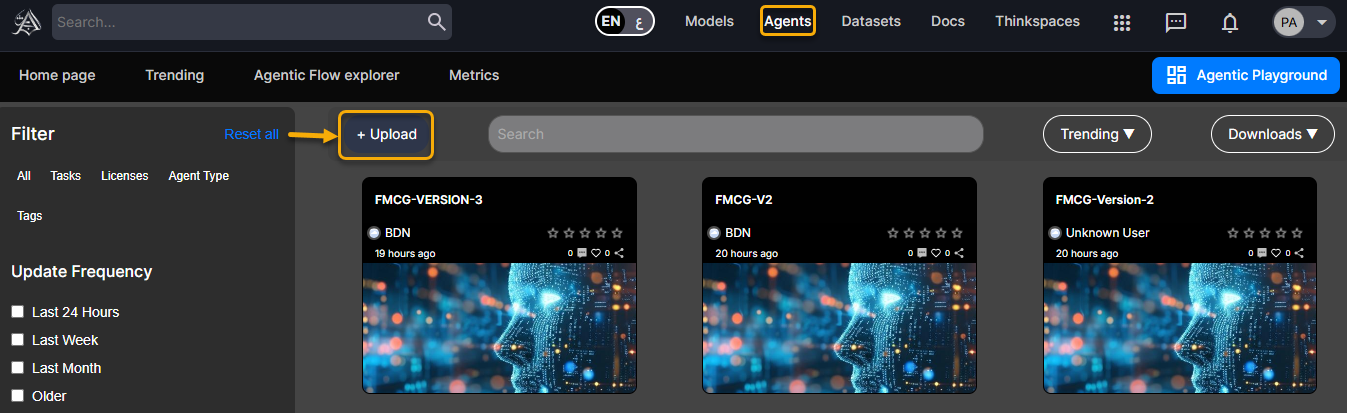
Click the Agents tab at the top of the navigation.
Click Upload Agent to open the agent upload page.
- On the Details page, provide:
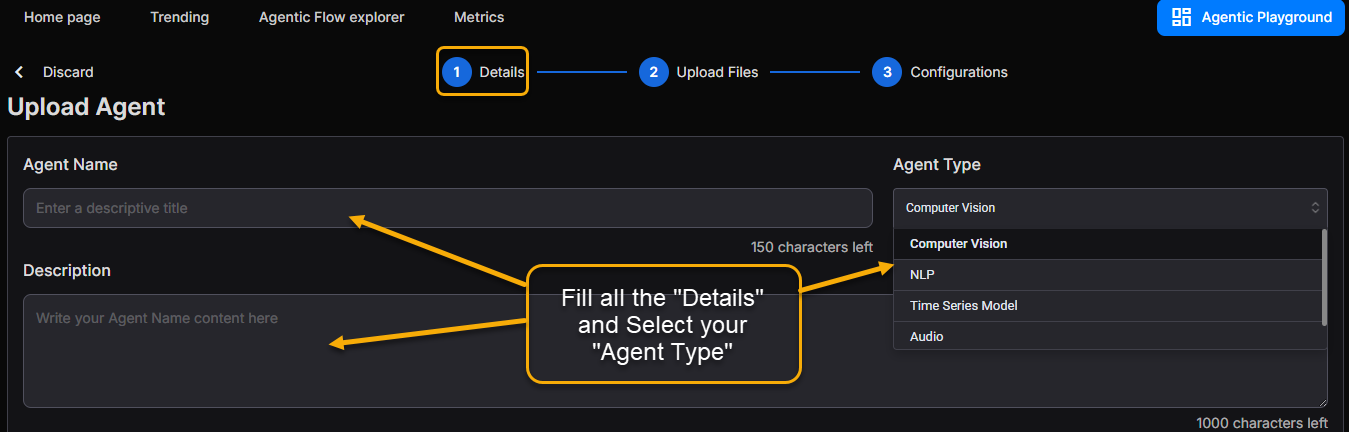
- Agent Name: Enter a descriptive Agent name.
Warning: Duplicate agent names are not allowed. The platform will display an error if the name already exists.
- Agent Type: Select Computer Vision, NLP, Time Series Model, or Audio.
- Description: A clear summary of the agent’s purpose (up to 1,000 characters).
- Environment: Choose Local, Cloud, or Hybrid based on your deployment needs.
- Programming Language: Select Python, JavaScript, Java, C++, Go, or Rust.
- Model Provider: Select from supported providers, such as OpenAI, Google, Hugging Face, Groq, and Meta.
- Model Name: Select a model available for your chosen provider (for example, if the provider is OpenAI, select GPT‑4o, GPT‑4 Turbo, GPT‑3.5 Turbo, or Text‑DaVinci‑003).
- Thumbnail (Optional): Drag or click to upload an image for your agent.
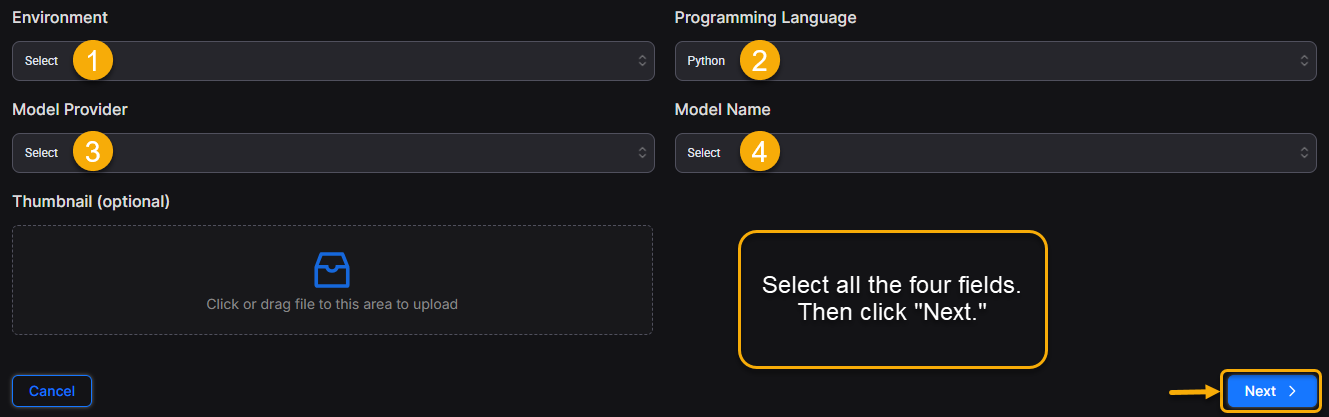
- Click “Next” to proceed with file uploads.
Step 2: Upload Files
Agent Weight Files
- On the Upload Files page, drag or click the Upload icon.
Note: If you are unsure which file types to use, click on Guide to Weight Files.
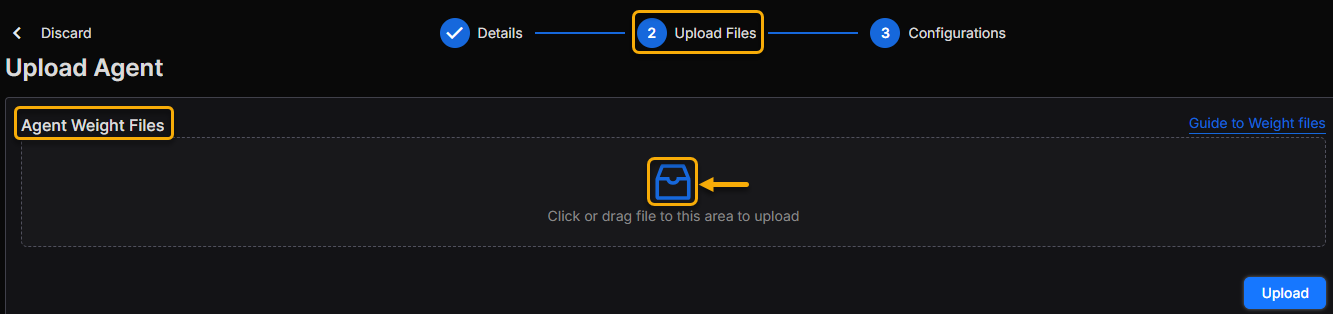
- The local file browser opens. Select the required weight files.
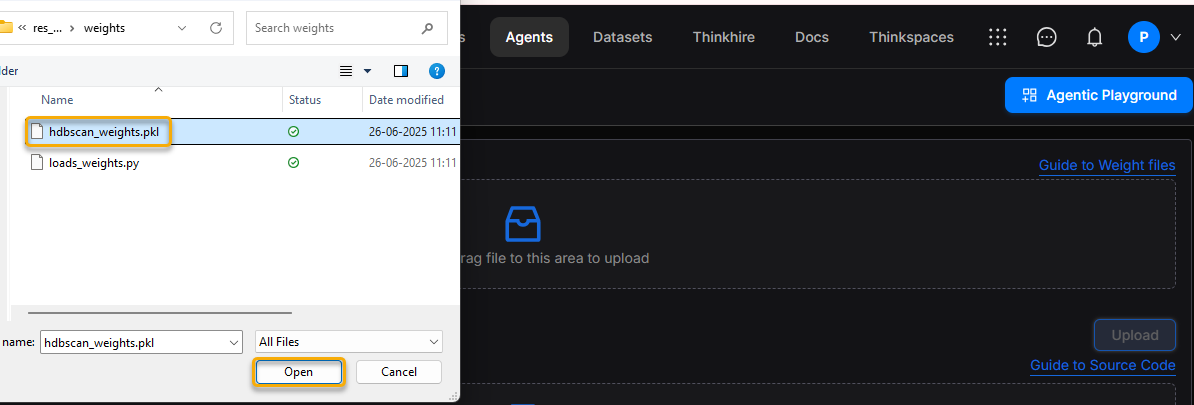
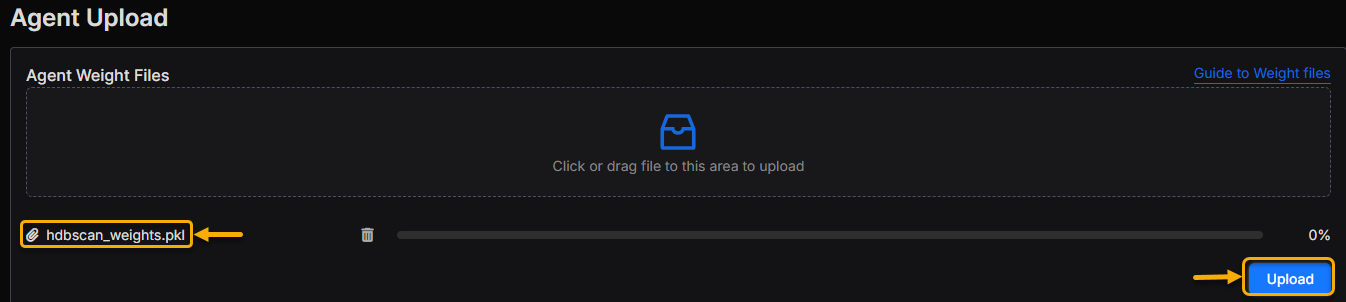
Selected files appear in the list below the upload icon.
Click the Upload icon (enabled in blue) on the right side.
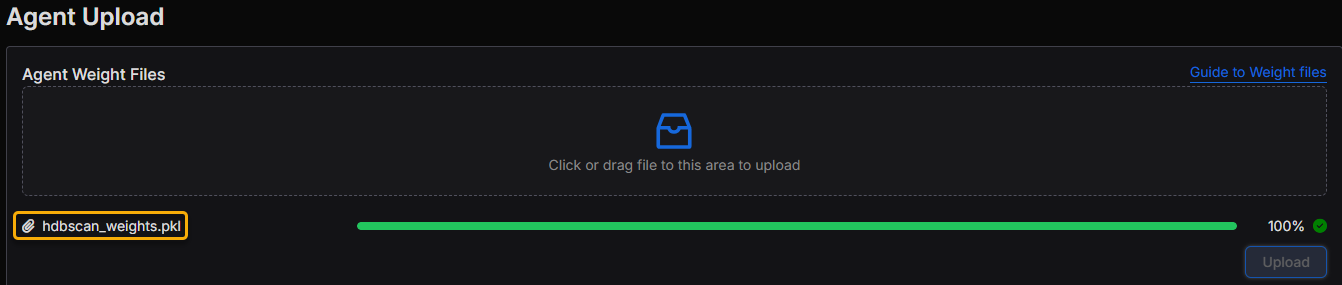
- Wait for the upload to complete.
Agent Source Code
- Click or drag and drop the Agent source folder into the upload area.
Note: Place all source files in a single folder to simplify the uploading process.
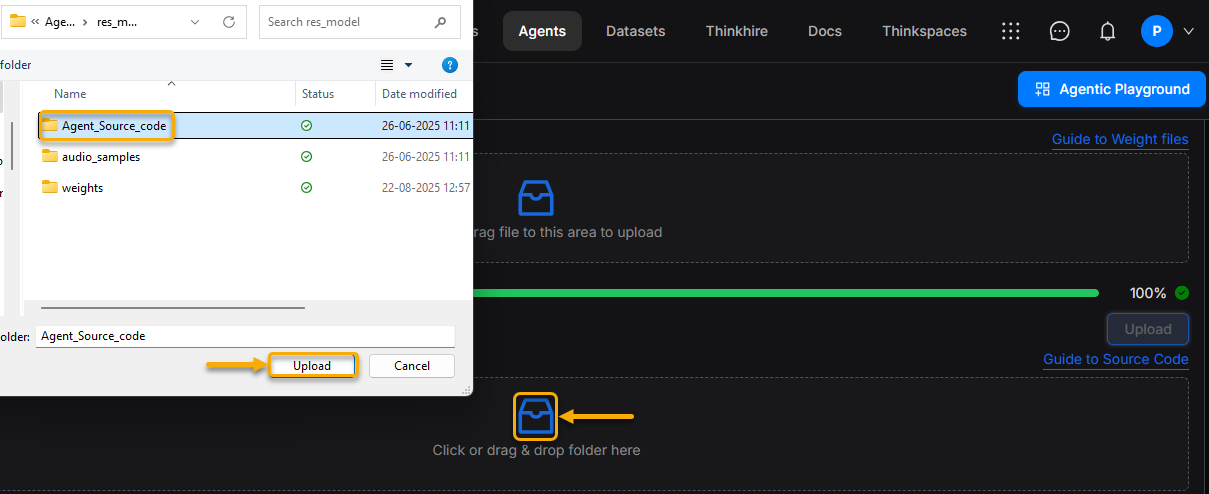
Note: Click on Guide to Source code to download.
Select the folder that contains the agent’s source code, and click upload.
Make sure it includes:
Metadata.jsonInput.jsonOutput.json
- Files display below the upload area.
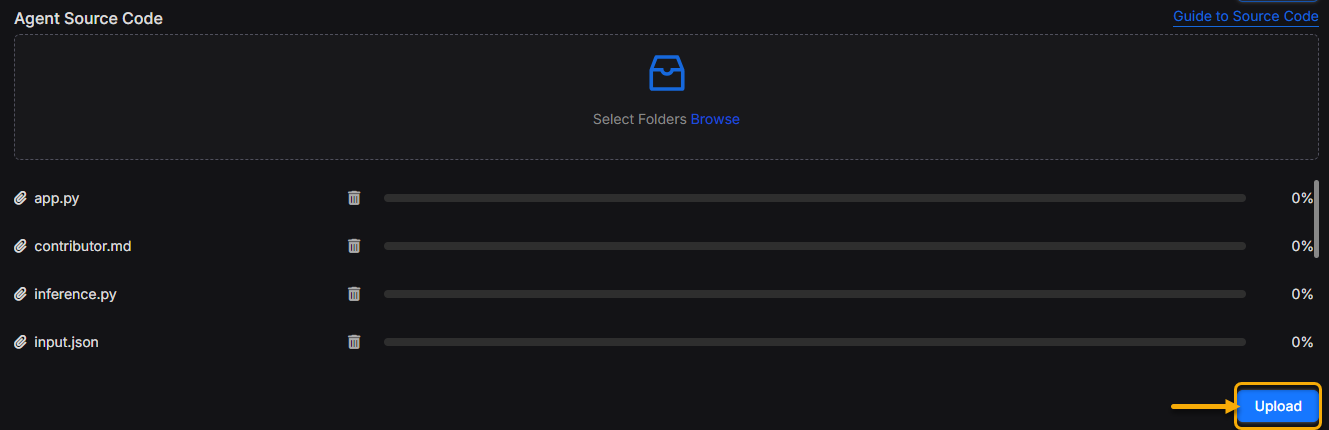
- Click the blue Upload button to proceed.
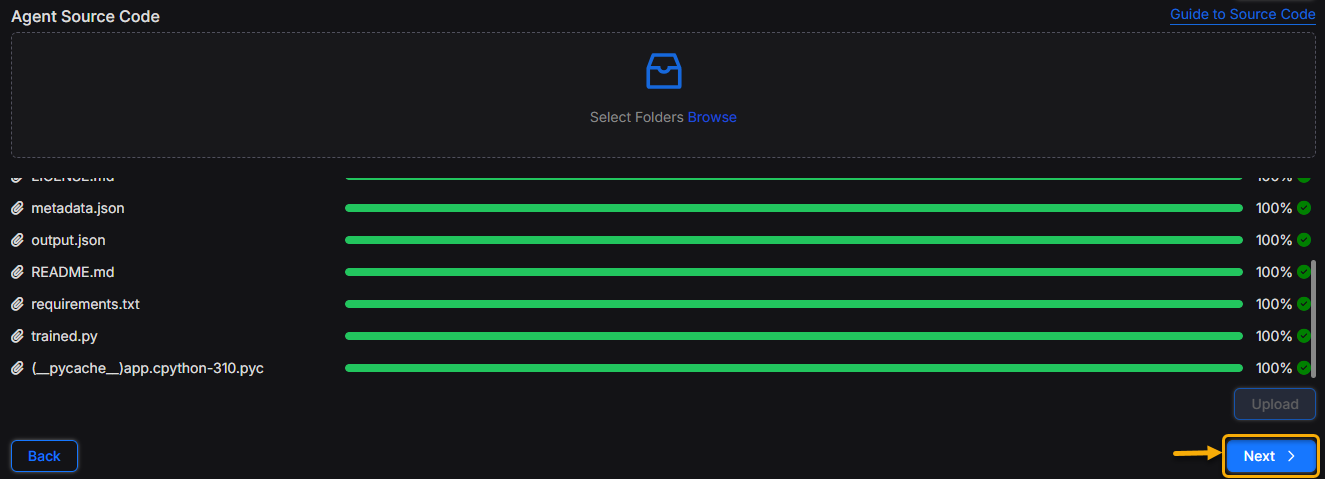
- Click Next to move to the configuration stage.
Step 3: Configure Endpoints and Environment
You can configure agent endpoints in two ways:
- Manual configure
- CSV file upload
Option 1: Manually configure
- Enter the following for each endpoint:

- Display Name: A user-friendly name for the endpoint.
- Method: Select GET, POST, PUT, or DELETE.
- URL Template: Enter the API URL.
- Click Add to save each endpoint.

- This section includes a radio button. Select this button to mark the endpoint as the primary endpoint for your agent.

Option 2:CSV File upload
- Click Guide to CSV Files, and a pop-up will appear on the right side of the screen to download the sample CSV Excel file.
Note: Click on Guide to CSV file to download.

- Open the CSV in Excel, and add as many endpoints as needed (Display Name, Method, and URL Template).
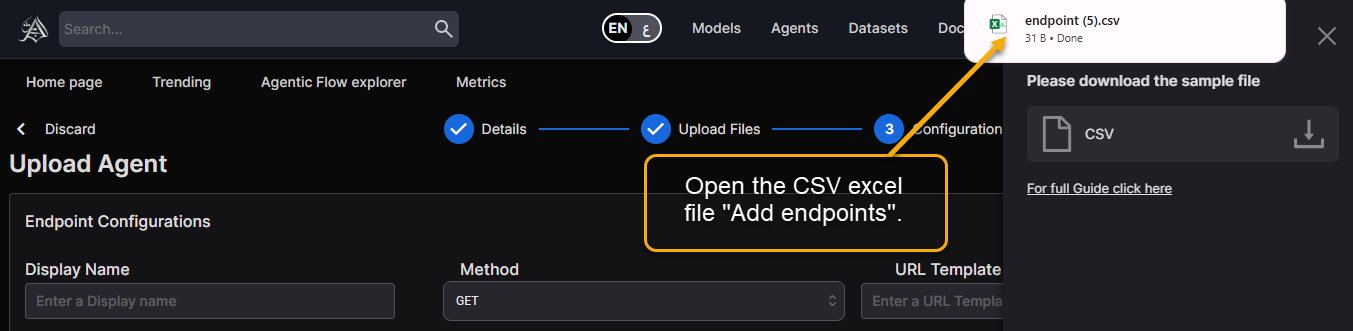
- Save the CSV Excel file locally.
- Click Upload CSV File to import your configurations.
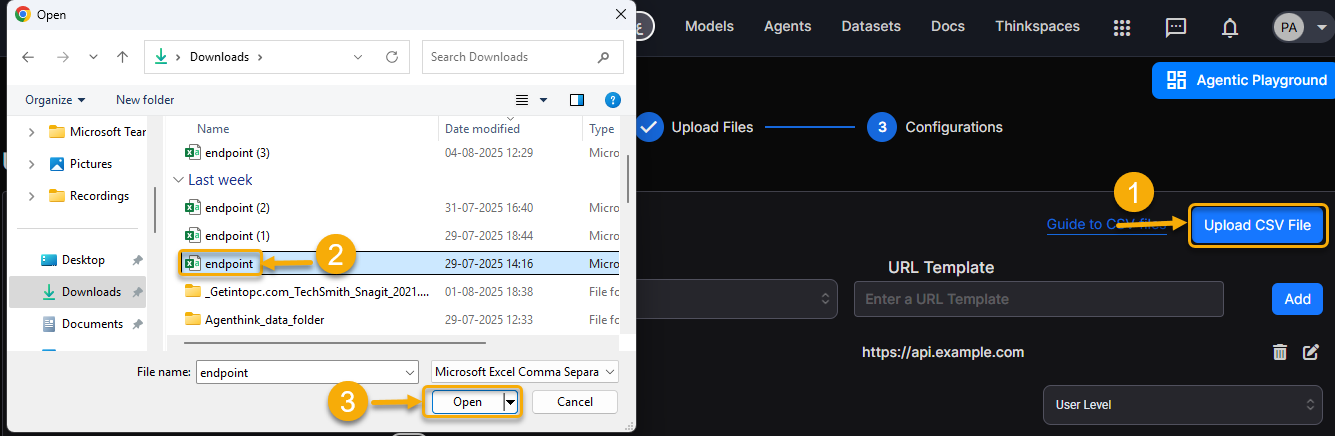
- This section includes a radio button. Select this button to mark the endpoint as the primary endpoint for your agent.
Key and Environment Configurations
After configuring the endpoints, define the agent’s runtime settings using Key Configurations.
- From the Key dropdown menu, select Environment Configurations to define values your agent will use at runtime.

- Key: Enter the configuration key (for example,
API_KEY,TIMEOUT, orMODEL_VERSION). - Name: Add a user-friendly label to identify the variable in the interface.
- Value: Enter the corresponding value (for example, an API key, time duration, or version number).
- Click Add, to save the configuration.

These fields serve as environment variables, enabling you to adjust your agent’s settings without modifying the source code.
Allocate Environment Resources:
- Use the slider to specify the memory range (from 2 GB to 64 GB).
- Select CPU or GPU based on the agent’s processing requirements.

- Click Submit to complete the setup.
- Upon successful upload, the platform displays a confirmation message. Your agent appears in the Agents Library, where you can use it in Thinkflows or share it with your organization.